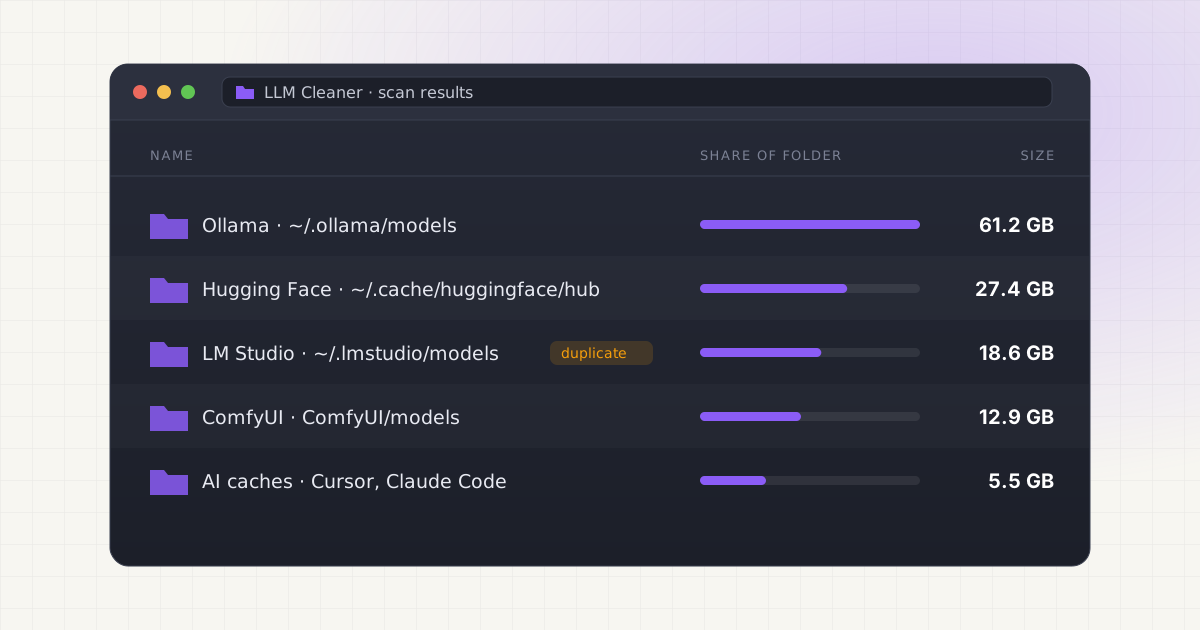
Your Mac storage is filling up because of local AI, and you already know it. Ollama, LM Studio, ComfyUI, Hugging Face downloads, plus whatever your coding assistant has been quietly caching in the background. Every guide you find either tells you to run rm -rf on an entire folder or walks you through vague steps that leave you unsure whether you just deleted something you needed.
Key takeaways
- Local AI files fall into distinct categories (weights, caches, memory, orphans, duplicates) and each needs a different deletion strategy, not one blanket approach.
- A single 7B model can range from about 4GB (quantized) to 14GB (full precision), so duplicates across tools add up fast.
- macOS Trash does not erase files immediately; it just removes the pointer, so it is your safety net during cleanup.
- Inventory and review before you delete anything, especially inside coding-assistant caches that may hold project context.
Why local AI storage is different
When you delete a large video file, the worst outcome is that you lose the video. When you delete the wrong model blob, you can silently break three different tools that all reference the same file without telling you they share it. When you clear an AI coding cache, you might wipe out project context that took months to accumulate through actual conversations with the tool.
That is the core problem with treating AI cleanup like normal disk cleanup. A photo library or a Downloads folder is mostly self-contained. Local AI storage is not. Ollama models live in one location, LM Studio caches its own copies elsewhere, Hugging Face has its own cache convention entirely, and coding assistants like Cursor or Claude Code scatter smaller files across dozens of project-specific directories. Some of these locations point to the same underlying weights through symlinks or shared blob stores. Others are fully independent copies of the same multi-gigabyte file. You cannot tell which is which just by looking at file size in Finder.
Is that really so different from clearing browser cache? It is, because a browser cache rebuilds itself invisibly the next time you load a page. A deleted model weight does not rebuild itself. It has to be re-downloaded, which for a mid-size model can mean waiting on several gigabytes over your connection before you can use the tool again.
What you are actually dealing with
Local AI storage on a typical Mac developer machine breaks down into five rough categories, and mixing them up is where most cleanup mistakes happen.
Model weights. Large binary files, sometimes shared across tools, never rebuildable without a fresh download. These are the files people usually mean when they say "my Ollama folder is huge." See where Ollama actually stores its models on Mac and where Hugging Face keeps its cached models if you are not sure where to even start looking.
Rebuildable caches. Search indexes, embedding caches, completion caches, and other derived data. These regenerate automatically the next time the tool needs them. Deleting these is close to risk-free, and LM Studio's disk usage often includes a meaningful chunk of this category alongside actual model files.
Project memory and context. Files that store what a coding assistant has learned about your codebase or previous sessions. These can hold genuinely useful information, and they need review, not bulk deletion. If you use Claude Code, read up on what is actually safe to delete from its project memory before you touch anything there.
Orphaned files. Leftovers from models you already removed through the tool's own interface, invisible to that tool because it no longer tracks them. These sit on disk doing nothing useful, and they are one of the biggest sources of wasted space precisely because nothing in the UI ever points you toward them.
Duplicates. The same model downloaded independently through two or three different tools. A 7B model can run anywhere from roughly 4GB in a quantized Q4 format up to 14GB at full FP16 precision, so having the same model sitting in both your Ollama store and your Hugging Face cache is not a small overlap.
Want to skip the hidden-folder hunt?
LLM Cleaner scans your Mac for local AI models, caches, indexes, and project memory — then shows what you can review, reveal, export, or safely move to Trash.
A quick decision table
When you are staring at a file and trying to decide what to do with it, this is roughly the logic worth applying.
| File category | Rebuildable? | Safe action |
|---|---|---|
| Active model weights (in use by a tool) | No, requires re-download | Leave alone, or move to external storage with a symlink left behind |
| Duplicate model weights across tools | No, but a copy exists elsewhere | Trash the extra copy, keep one canonical version |
| Orphaned blobs (model removed from tool's UI) | No, but nothing references them | Trash after confirming no tool still points to the path |
| Rebuildable caches and indexes | Yes, regenerates automatically | Safe to delete anytime, even in bulk |
| Project memory / context files | Partially, depends on the tool | Review individually, export anything useful first |
| Manifests and symlinks | No, these are pointers not data | Leave alone unless the target file is also being removed |
Notice that only two of these six categories are safe to delete without a second look. That ratio is exactly why blanket folder deletion is a bad habit to carry over from normal disk cleanup.
The steps that actually work
1. See everything before touching anything
Before deleting a single file, get a complete inventory across every source: Ollama, LM Studio, Hugging Face, ComfyUI, Whisper, any coding assistant caches, and loose files sitting outside all of those. You cannot make a good decision about one file in isolation if you do not know what else on the machine references the same weights or depends on the same folder structure. A full scan that groups everything by source and size gives you the actual picture instead of a guess based on which folder looks big in Finder.
2. Reveal file paths before acting
Know exactly what you are about to remove, down to the real path on disk, not just a friendly name in some app's model list. Model files are often stored under hashed or truncated filenames (Ollama's blob store is a good example) that give you zero information about what the file actually is unless you can see the underlying path and cross-reference it against the tool's manifest. Reveal the file, confirm what it is, then decide.
3. Move to Trash, not permanent delete
This one matters more than people assume. macOS Trash does not immediately erase data from disk. Emptying the Trash removes the file's logical links and marks that space as available for new data, but the underlying bytes are not wiped on the spot, which is why recovery tools and Time Machine or APFS snapshots can sometimes bring a file back even after the Trash is emptied. That is not a guarantee, and you should not treat it as a substitute for caution, but it does mean that using Trash instead of a permanent delete gives you a real recovery window if a model turns out to still be needed by something you forgot about. Finder even lets you right-click an item in the Trash and choose Put Back to return it to its exact original location.
4. Export a report first
Before any significant cleanup pass, generate a written record of what was on your machine: source, path, size, last modified date, duplicate flags. This is not busywork. If something breaks two weeks later and you cannot remember whether you deleted a 9GB Mistral checkpoint or a 40MB LoRA adapter, that report is the difference between a five-minute fix and an afternoon of guessing.
5. Handle duplicates specifically
Duplicates are the highest-value cleanup target because you can reclaim real space without losing any capability at all. If the same 13B model exists in both your LM Studio cache and your raw Hugging Face cache, you almost certainly do not need both copies sitting on disk. The catch is confirming they are actually identical and not two different quantizations that happen to have similar file sizes, which is where a proper content check beats eyeballing file size in Finder.
Where each tool actually hides its files
Every tool has its own storage convention, and that is a big part of why this gets confusing. Ollama's disk usage tends to creep up because old model versions stick around after you pull an update. Coding assistants are arguably worse offenders because their footprint is spread thin across many small files rather than a few obvious large ones. If you use Cursor, its workspace storage habit of creating a new folder per project is a common surprise. Windsurf and Codeium users should check whether their cache can be cleaned safely before assuming it is inert. And if you are running open source agent frameworks on top of local models, where that storage actually goes is rarely obvious from the framework's own documentation. More broadly, local AI agents as a category tend to fill storage in ways their users do not expect until the disk is nearly full.
Local AI storage is messy. Cleanup should not be.
Find Ollama, LM Studio, Hugging Face, Cursor, Windsurf, Claude Code, Whisper, and loose model files in one place.
What not to do
Do not delete entire tool directories at once. It feels efficient, but it also removes configuration and manifest files the tool needs to function, which can turn a 10-minute cleanup into a full reinstall.
Do not delete blob files by searching for large files in Finder and removing whatever shows up. Blob stores use hashed filenames with no indication of what tool or model they belong to, so you are effectively deleting blind.
Do not clean up while AI tools are actively running. A file that looks unused can still be memory-mapped or open in a background process, and removing it out from under a running tool causes crashes that are annoying to diagnose after the fact.
Do not skip the review step because you are in a hurry. The entire point of separating rebuildable caches from irreplaceable weights is that a five-minute review saves you from re-downloading gigabytes of data you deleted by accident.
Not sure what is safe to delete?
LLM Cleaner separates models, rebuildable caches, and project memory so you do not treat everything like junk.
Frequently asked questions
Is it safe to delete Ollama's blob files directly from Finder?
Not reliably. Ollama's blob store uses hashed filenames that give no indication of which model or manifest they belong to. Deleting the wrong blob can break a model that still has an active manifest pointing to it. Use Ollama's own remove command, or a tool that reads the manifests before deleting.
Will moving a model file to Trash break the tool that uses it?
Yes, immediately, if that model is still referenced by the tool. Moving to Trash removes the file from its original path just like a permanent delete would, from the tool's point of view. The advantage of Trash is that you can restore it with Put Back if you discover the break, not that it prevents the break from happening.
How do I know if two model files are actually duplicates?
Matching file size alone is not enough, since different quantizations of the same model can land at similar sizes by coincidence. A proper duplicate check should compare content, not just size, ideally through a partial hash of the file data rather than the filename or metadata.
Does emptying the Trash on Mac actually erase the data right away?
No. Emptying the Trash removes the file's logical links and marks that space as available for new data, but the underlying bytes are not wiped instantly. That is why recovery software or a Time Machine backup can sometimes restore a file even after the Trash has been emptied, though you should never count on that as a safety net.
What is the single highest-value thing to clean up first?
Duplicates. Removing a model that exists in two tools at once reclaims several gigabytes without any loss of capability, since one working copy remains. It is also the lowest-risk category to touch, compared with project memory or files you are not fully sure are orphaned.