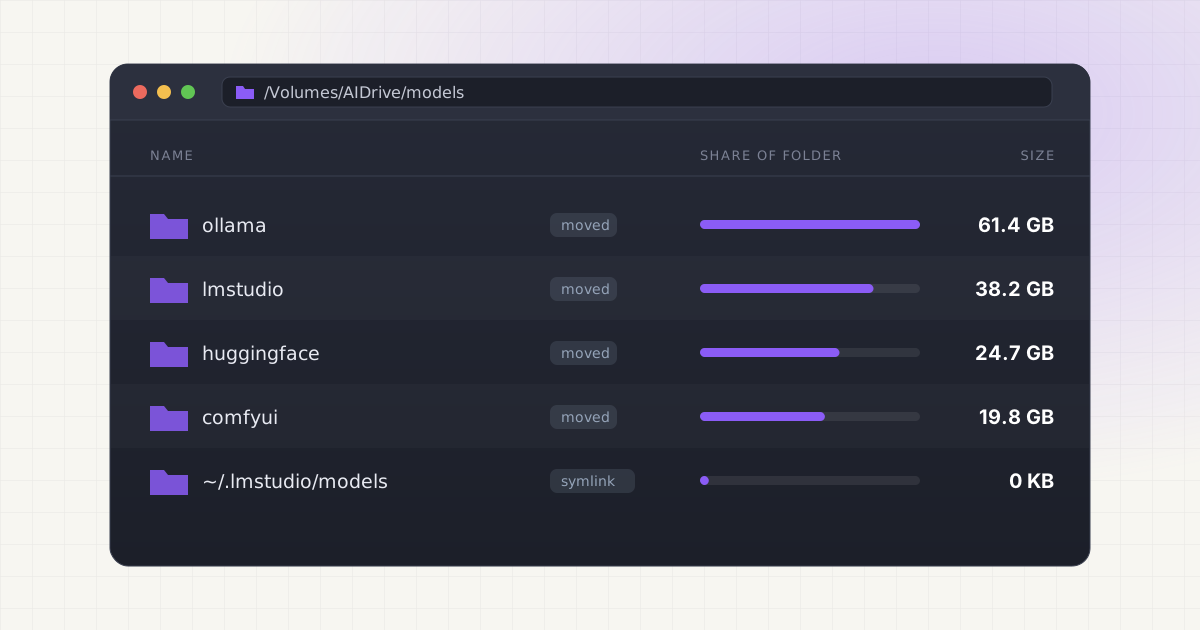
Your internal SSD is 512GB, and somewhere between a few Ollama pulls, an LM Studio download spree and a Hugging Face experiment, a hundred gigabytes of it turned into model weights. You don't want to delete them. You just want them on the 2TB external drive sitting on your desk.
Every major local AI tool can read models from another disk. The only question is whether you tell the tool about the new location or use a symlink.
Key takeaways
- Ollama reads its folder from
OLLAMA_MODELS. For the Mac app, set it withlaunchctl setenvand restart Ollama. It doesn't survive a reboot on its own. - LM Studio lets you change the models directory from the My Models tab. The default is
~/.lmstudio/models. - Hugging Face uses
HF_HOME(orHF_HUB_CACHEfor just the model cache). The cache relies on symlinks internally, so format the drive as APFS. - The other approach is universal: copy the folder, verify it, then replace the original with a symlink.
- Unplug the drive and the models disappear from every tool until you plug it back in. Nothing gets corrupted, but some tools may start downloading to the old location.
The direct answer: two ways to move models
There are two approaches, and both are safe if you copy before you delete.
- Point the tool at the new folder. Copy the models to the external drive, then change the tool's setting (an environment variable or an option in the app) so it reads from there. This is the officially supported route for each tool.
- Move the files and leave a symlink. Copy the folder to the drive, delete the original, and create a symbolic link at the old path that points to the new one. The tool keeps using the path it always used and never knows the bytes moved.
Option 1 is cleaner when a tool has a setting. Option 2 helps when it doesn't, or when you only want to move a few large files.
| Tool | Default folder on Mac | Supported way to relocate | Symlink works? |
|---|---|---|---|
| Ollama | ~/.ollama/models | OLLAMA_MODELS via launchctl setenv, or the app's models folder setting | Yes |
| LM Studio | ~/.lmstudio/models | My Models tab, change the models directory | Yes |
| Hugging Face | ~/.cache/huggingface | HF_HOME or HF_HUB_CACHE | Yes, drive should be APFS |
| ComfyUI | ComfyUI/models or ~/ComfyUI-Shared/models | extra_model_paths.yaml or Comfy Desktop's Storage tab | Yes |
Sources: Ollama FAQ, LM Studio docs, Hugging Face env vars, ComfyUI docs
Before you start: format the drive as APFS
Apple describes APFS as the default file system for Macs on macOS 10.13 or later, and lists exFAT as the format to use for Windows volumes over 32GB. Source For a drive that only your Mac will use for models, pick APFS in Disk Utility.
The reason matters more than it sounds. A symlink you create on your internal disk that points to an external drive works whatever format the drive uses, because the link itself lives on APFS. But some tools create symlinks on the drive. The Hugging Face cache is the big one: its snapshots folder is made of symlinks pointing into blobs. Source When symlinks aren't supported, huggingface_hub falls back to storing full files in snapshots, which works but can download the same file more than once. Source Software vendors also report symlink problems on exFAT drives with macOS and recommend APFS instead. Source
Ollama: OLLAMA_MODELS and launchctl
Ollama's docs list ~/.ollama/models as the macOS default and say to set OLLAMA_MODELS to use a different directory. On a Mac, environment variables for the app are set with launchctl setenv, followed by a restart of the Ollama application. Source If you want the background on the blob and manifest layout first, see where Ollama stores models on Mac.
Quit Ollama from the menu bar, then copy everything across:
mkdir -p /Volumes/AIDrive/models/ollama
rsync -a --progress ~/.ollama/models/ /Volumes/AIDrive/models/ollama/
launchctl setenv OLLAMA_MODELS /Volumes/AIDrive/models/ollama
Reopen Ollama and run ollama list. Once a model runs, move the old ~/.ollama/models to the Trash.
The reboot catch. launchctl setenv sets a variable for future processes launched by launchd. Source Users have reported in Ollama's issue tracker that the setting is lost after a restart, so you have to run it again or add it to something that runs at login, such as a LaunchAgent. Source Recent versions of the Ollama app also have a models folder setting in its Settings. A fix shipped so that the saved path is kept even if the external drive isn't mounted yet when Ollama starts. Source If your app version has it, that's the easier option.
Homebrew service caveat. If you run Ollama with brew services start ollama, the service definition sets only its own variables (OLLAMA_FLASH_ATTENTION and OLLAMA_KV_CACHE_TYPE). Source An export OLLAMA_MODELS=... line in your .zshrc won't reach it. To confirm which folder the server actually loaded, check the server config line in its log, as described in our guide to deleting Ollama models.
LM Studio: change the models directory
LM Studio's docs say it expects models under ~/.lmstudio/models/, organized as publisher/model/model-file.gguf. Source To use another location, the docs say: "You can change the models directory by heading to My Models." Source In the app, open My Models, click the folder path shown at the top, and choose the folder on your external drive.
Copy the existing models first, keeping the same two-level structure, or LM Studio won't recognize them:
rsync -a --progress ~/.lmstudio/models/ /Volumes/AIDrive/models/lmstudio/Then switch the directory, confirm your models show up in My Models and load one. Only after that should you delete the originals. More on LM Studio's disk usage.
Hugging Face: HF_HOME and HF_HUB_CACHE
The Hugging Face cache defaults to ~/.cache/huggingface. HF_HOME moves the whole thing, including your token. HF_HUB_CACHE moves only the repository cache, which defaults to $HF_HOME/hub. Source These variables are read when huggingface_hub is imported, so set them before you start Python. Source
Copy the hub cache and set the variable in your shell profile:
rsync -a --progress ~/.cache/huggingface/hub/ /Volumes/AIDrive/models/huggingface/hub/
echo 'export HF_HUB_CACHE=/Volumes/AIDrive/models/huggingface/hub' >> ~/.zshrc
Use rsync -a, not a Finder drag. The -a flag copies symlinks as symlinks, and the cache's snapshots folders are full of them. Their targets are relative paths like ../../blobs/<hash>, so they keep working after the move. Source
Open a new terminal and check the result with the hf CLI:
hf cache ls
hf cache verify <repo_id>
hf cache ls lists what's cached and how much space it takes, and hf cache verify checks cached files against the Hub's checksums. Both accept --cache-dir if you want to point at the external path explicitly. Source If you'd rather shrink the cache than move it, hf cache rm and hf cache prune are covered in where Hugging Face models are stored on Mac.
Move models without the Terminal work.
LLM Cleaner copies the models you pick to an external drive and leaves a symlink at the original path, so Ollama, LM Studio and Hugging Face keep finding them.
ComfyUI: extra_model_paths.yaml or the Storage tab
ComfyUI reads additional model folders from extra_model_paths.yaml in its root directory. Source Point a section of that file at your external drive and ComfyUI lists those checkpoints and LoRAs alongside its own. On Comfy Desktop, you add model folders in the Storage tab instead, and the folder marked Primary is where new downloads go. Source ComfyUI also follows symlinks when it scans model folders. Source The full walkthrough, including the old and new Desktop app paths, is in our ComfyUI models guide.
The symlink method, step by step
This works for any tool that stores models in a fixed folder. Copy, verify, then link. Never move first.
1. Quit the tool so nothing is written mid-copy.
2. Copy with rsync. Here, LM Studio's folder:
rsync -a --progress ~/.lmstudio/models/ /Volumes/AIDrive/models/lmstudio/The trailing slash copies the folder's contents, not the folder itself.
3. Verify the copy. Compare sizes, then do a checksum dry run. If the second command prints no file names, the copies match:
du -sh ~/.lmstudio/models /Volumes/AIDrive/models/lmstudio
rsync -anc --itemize-changes ~/.lmstudio/models/ /Volumes/AIDrive/models/lmstudio/
4. Rename the original instead of deleting it.
mv ~/.lmstudio/models ~/.lmstudio/models.old
ln -s /Volumes/AIDrive/models/lmstudio ~/.lmstudio/models
5. Test. Open the tool, load a model and run it. ls -l ~/.lmstudio should show models -> /Volumes/AIDrive/models/lmstudio.
6. Delete the old copy. Once you've used the tool normally for a day, remove models.old. That's the moment the space comes back.
For Ollama, symlink the whole ~/.ollama/models folder rather than individual blobs. Blob names are digests, and it's easy to move the wrong one. For a broader checklist on not breaking tools while freeing space, see how to clean local AI models without breaking your setup.
How fast is an external drive for models?
Drive speed mostly affects how long a model takes to load. Once the weights are in memory (unified memory on Apple Silicon), generation runs from RAM, so tokens per second shouldn't change.
- A Thunderbolt NVMe enclosure is the closest you'll get to internal SSD behavior. Loads feel similar for most models.
- A USB 3.2 NVMe drive is noticeably slower to load a 40GB model, but fine for the 4 to 8GB models most people use daily.
- A spinning hard drive works, but loading a large model can take long enough to be annoying. Use it for archive storage, not your daily drivers.
Ollama keeps a model in memory for 5 minutes by default after you use it, and OLLAMA_KEEP_ALIVE extends that. Source
What happens when the drive is unplugged
Nothing breaks permanently, but expect some confusion:
- Symlinks point at a path that doesn't exist. Tools either show no models or throw a "file not found" error. Plug the drive back in and everything returns.
- Ollama shows no models. Older versions of the app also reset a custom models folder to the default when the external drive wasn't mounted at startup, a bug that has since been fixed. Source If you're on an older version, watch for new pulls landing on your internal disk.
- Hugging Face treats the files as not cached. A script that downloads a model will try to fetch it again into whatever
HF_HUB_CACHEpoints to, so don't run downloads with the drive unplugged.
Eject the drive properly and keep its name stable. Rename AIDrive and every link and variable needs updating.
Time Machine and Spotlight
Time Machine backs up your home folder, hidden model folders included, unless you exclude them. If you keep any models on the internal disk, exclude those folders:
tmutil addexclusion ~/.cache/huggingfaceBy default, that exclusion is "sticky": it follows the folder if it moves and stays on copies. Source The Hugging Face cache also drops a CACHEDIR.TAG file that tells backup tools like Borg, restic and rsync it's safe to skip. Source
Spotlight indexes external drives too. Open System Settings, click Spotlight, then Search Privacy, and add the drive or folder. Source From Terminal, you can turn indexing off for a whole volume:
sudo mdutil -i off /Volumes/AIDriveDoing it with LLM Cleaner
The manual steps are fine for one tool. Across four, it gets tedious. LLM Cleaner scans Ollama, LM Studio, Hugging Face, ComfyUI, Whisper and AI coding caches in one pass and shows Ollama blobs under their real model names. Its Move to Drive action copies the models you select to a folder you choose and leaves a symlink at the original path: the step-by-step method without the typing. It also flags identical model files of 50MB or more stored more than once, so you can delete a spare copy instead of moving two. Deletes go to the macOS Trash first with one-click restore. Everything runs locally.
Free up your internal SSD and keep every model.
Scan, de-duplicate and move local AI models to an external drive in one app. One-time $19 for macOS 12+.
Frequently asked questions
How do I move Ollama models to an external drive on Mac?
Quit Ollama, copy ~/.ollama/models to the drive with rsync -a, then run launchctl setenv OLLAMA_MODELS /Volumes/YourDrive/ollama and reopen Ollama. Check ollama list, then delete the old folder. Re-run the launchctl command after a reboot, or use the app's models folder setting if your version has it.
Why does OLLAMA_MODELS reset after I restart my Mac?
Variables set with launchctl setenv don't persist across reboots. Set it again at login with a LaunchAgent, use the Ollama app's own folder setting, or replace ~/.ollama/models with a symlink so no variable is needed.
Can LM Studio load models from an external SSD?
Yes. In the My Models tab, change the models directory to a folder on the drive. Keep the publisher/model/file.gguf structure when you copy existing models, or LM Studio won't detect them.
How do I move the Hugging Face cache to an external drive?
Copy ~/.cache/huggingface/hub with rsync -a so internal symlinks are preserved, then set HF_HUB_CACHE (or HF_HOME for everything) to the new path before starting Python. Confirm with hf cache ls.
Will models run slower from an external drive?
Only loading is slower. Once a model is in memory, generation speed is the same.