C: drive full from AI models? Here's how to move them to D:
Ollama, LM Studio, Hugging Face and ComfyUI all default to your C: drive, even when you install them elsewhere. This guide shows how to find what's using the space and move each tool's models to another drive without re-downloading anything.
Models live under C:\Users\<you>: .ollama\models, .lmstudio\models and .cache\huggingface, plus ComfyUI's models folder. Copy each one to D:, then point the tool at the new place: OLLAMA_MODELS for Ollama, the models folder setting in LM Studio, HF_HOME for Hugging Face, and extra_model_paths.yaml for ComfyUI. Or leave a junction at the old path with mklink /J so no settings change at all.
Step 1: Find what's using C:
Open Settings → System → Storage for an overview. It shows categories such as Apps, Temporary files and Other, but it never names AI model folders. To get real numbers, open PowerShell and run:
$paths = "$env:USERPROFILE\.ollama", "$env:USERPROFILE\.lmstudio",
         "$env:USERPROFILE\.cache\huggingface", "$env:USERPROFILE\.cache\whisper",
         "$env:APPDATA\Cursor", "$env:USERPROFILE\.claude"
foreach ($p in $paths) {
  if (Test-Path $p) {
    $gb = (Get-ChildItem $p -Recurse -File -Force -ErrorAction SilentlyContinue |
           Measure-Object Length -Sum).Sum / 1GB
    "{0,8:N1} GB  {1}" -f $gb, $p
  }
}
ComfyUI isn't in that list because its folder is wherever you unpacked or installed it. For the portable build that's ComfyUI_windows_portable\ComfyUI\models. For a full sweep of every .gguf and .safetensors file in your profile, see how to find hidden AI model files.
Before moving anything,delete what you don't need. Moving 40 GB of models you never use just fills D: instead. ollama list and ollama rm <name> are the safe way to remove Ollama models.
Step 2: Move Ollama models to D:
- Quit Ollama: right-click the llama icon in the system tray and choose Quit Ollama.
- Copy the models folder to D: in Command Prompt:
robocopy "%USERPROFILE%\.ollama\models" "D:\AI\ollama\models" /E- Set
OLLAMA_MODELSfor your account. Search the Start menu for "environment variables", choose Edit environment variables for your account and add it, or run this in PowerShell:
[Environment]::SetEnvironmentVariable('OLLAMA_MODELS', 'D:\AI\ollama\models', 'User')- Start Ollama again and run
ollama list. Your models should all be there. - Once you've confirmed a model runs, delete the old
%USERPROFILE%\.ollama\modelsfolder.
Background: how Ollama's blobs and manifests work.
Step 3: Move LM Studio models
- Close LM Studio.
- Copy
%USERPROFILE%\.lmstudio\models(or%USERPROFILE%\.cache\lm-studio\modelson older installs) to a folder on D:, keeping the publisher and model folders as they are. - Open LM Studio, go to My Models and change the models folder to the new location.
- Check that your models appear and load, then delete the old folder.
Step 4: Move the Hugging Face cache
Everything that uses huggingface_hub, including Transformers, Diffusers and faster-whisper, reads HF_HOME. Close any Python processes, then:
robocopy "%USERPROFILE%\.cache\huggingface" "D:\AI\huggingface" /E /SL[Environment]::SetEnvironmentVariable('HF_HOME', 'D:\AI\huggingface', 'User')/SL copies symbolic links as links instead of duplicating the files they point to, which matters if your cache already uses symlinks.
Open a new terminal so the variable is picked up, run a script that loads a cached model, and delete the old %USERPROFILE%\.cache\huggingface once it works.
Turn on Developer Mode(Settings → System → For developers on Windows 11, Settings → Update & Security → For developers on Windows 10). Without it, the Hugging Face cache may not be able to create symlinks and stores full copies instead, which uses more space.
Step 5: Point ComfyUI at D:
Move your checkpoints, loras, vae and other model folders to D:\AI\comfyui-models, then tell ComfyUI where they are. For the portable build, rename extra_model_paths.yaml.example in the ComfyUI folder to extra_model_paths.yaml and add:
shared_models:
  base_path: D:/AI/comfyui-models
  checkpoints: checkpoints
  loras: loras
  vae: vae
  controlnet: controlnet
  upscale_models: upscale_models
ComfyUI Desktop keeps the same kind of file as extra_models_config.yaml in %APPDATA%\ComfyUI. Restart ComfyUI and the models appear in the loader nodes. See ComfyUI models taking too much space for what each folder holds.
Alternative: leave a junction at the old path
If a tool has no setting, or you don't want to change any, move the folder and leave a directory junctionbehind. The tool keeps using the C: path and Windows redirects it to D:. Junctions don't need admin rights. In Command Prompt, with the tool closed:
robocopy "%USERPROFILE%\.lmstudio\models" "D:\AI\lmstudio-models" /E
ren "%USERPROFILE%\.lmstudio\models" models.old
mklink /J "%USERPROFILE%\.lmstudio\models" "D:\AI\lmstudio-models"
Open the tool and check everything loads. Then delete models.old. Renaming first, rather than deleting, gives you an easy way back if something goes wrong.
Junctions only work for folders. For a single file, such as one large checkpoint, you need a symbolic link (mklink without /J), which requires Developer Mode or an elevated prompt.
The faster way: LLM Cleaner for Windows
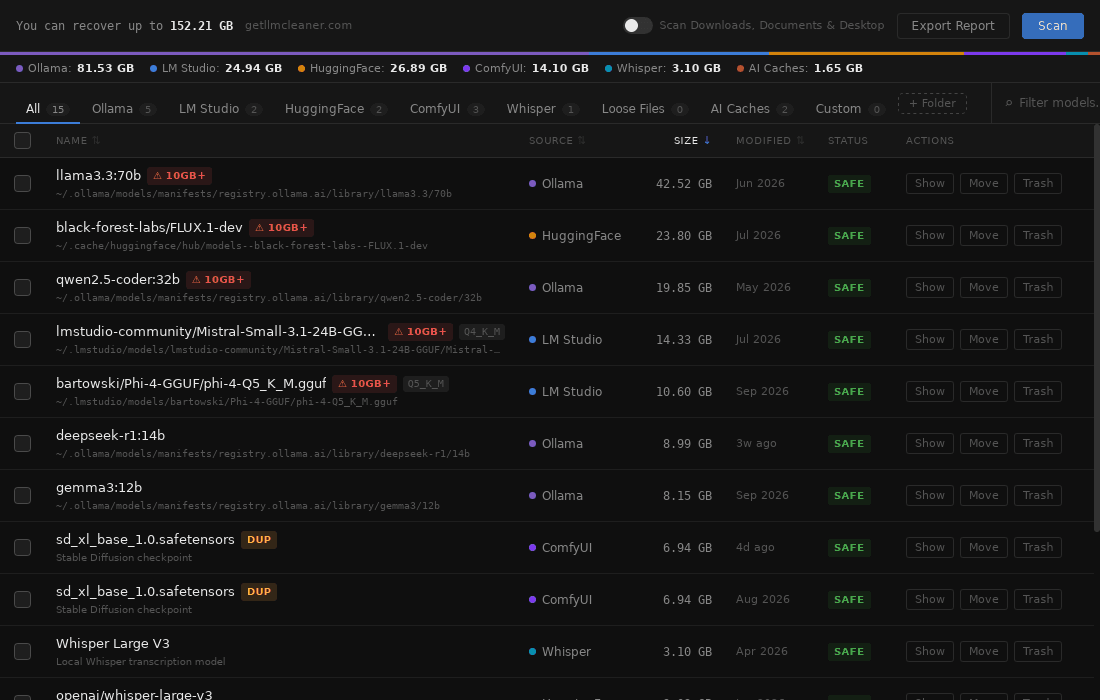
Doing all of the above means closing four apps, copying four folders and changing four settings. LLM Cleaner does the same job from one window.
Scan
Finds Ollama, LM Studio, Hugging Face, ComfyUI (portable and Desktop), Whisper, coding caches and loose model files, including folders set with
OLLAMA_MODELSandHF_HOME.Pick the big ones
Sort by size, check duplicates of 50 MB or more, and use Show in File Explorer to confirm what each row is.
Move to D:
Choose a destination. Folders get a junction and files a symbolic link at the old path, so no tool needs reconfiguring.
Or recycle
Models you don't need go to the Recycle Bin and can be restored from the app with one click.
FAQ
Why do AI tools install models on C: when I have a D: drive?
Ollama, LM Studio, Hugging Face, Whisper and most coding assistants store data in your user profile (C:\Users\<you>) by default, regardless of where the program itself is installed. Each tool has its own setting or environment variable to change that.
Where does Ollama store models on Windows?
In %USERPROFILE%\.ollama\models, which is C:\Users\<you>\.ollama\models. Set the OLLAMA_MODELS user environment variable to another folder and restart Ollama to change it.
Will models run slower from D:?
Only loading is affected, and only if D: is slower than C:. A model loads once into RAM or VRAM; after that, generation speed does not depend on the drive. A hard disk will make loading noticeably slower than an SSD.
Do I need administrator rights to move models?
No. User environment variables, robocopy into a folder you own, and mklink /J junctions all work as a normal user. Symbolic links to single files are different: they need Developer Mode turned on.
What does Developer Mode have to do with Hugging Face?
The Hugging Face cache normally uses symbolic links to avoid storing the same file twice. If Windows does not allow symlinks for your account, the library falls back to full copies and warns you, which uses more space. Turning on Developer Mode lets it use symlinks.
Is there an easier way?
LLM Cleaner for Windows finds every model on your PC, then moves the ones you pick to D: or an external drive. Folders get a junction and files a symbolic link at the old path, so you do not have to change any tool settings. Deleted models go to the Recycle Bin.
Free up C: without breaking your tools
Find every model, move the big ones to D:, recycle the rest. $19 once for any two computers, and nothing leaves your PC.
One-time payment · use it on any 2 computers · also runs on NVIDIA DGX Spark · Already bought? Get your installer