How to find hidden AI model files on Mac, Windows and Linux
Local AI tools store models in hidden folders under your home directory, not in Downloads. This guide lists every common location, shows how to make hidden folders visible, and gives copy-paste commands to measure them and find stray model files.
Look in .ollama/models, .lmstudio/models, .cache/huggingface/hub and .cache/whisper inside your home folder, plus ComfyUI's modelsfolder and your coding assistant's data folder. On Linux, also check /usr/share/ollama/.ollama/models. Run du -sh ~/.ollama ~/.cache/huggingface ~/.lmstudio on Mac or Linux, or the PowerShell snippet below on Windows, to see how big each one is.
Where each tool keeps its models
These are the defaults. Environment variables such as OLLAMA_MODELS, HF_HOME and HF_HUB_CACHE, LM Studio's downloads folder setting and ComfyUI's extra_model_paths.yaml can move them elsewhere.
| Tool | macOS | Windows | Linux |
|---|---|---|---|
| Ollama | ~/.ollama/models | %USERPROFILE%\.ollama\models | /usr/share/ollama/.ollama/models (service) or ~/.ollama/models |
| LM Studio | ~/.lmstudio/models | %USERPROFILE%\.lmstudio\models | ~/.lmstudio/models |
| Hugging Face | ~/.cache/huggingface/hub | %USERPROFILE%\.cache\huggingface\hub | ~/.cache/huggingface/hub |
| ComfyUI | ~/Documents/ComfyUI/models | Portable: ComfyUI_windows_portable\ComfyUI\models | ComfyUI/models |
| Whisper | ~/.cache/whisper | %USERPROFILE%\.cache\whisper | ~/.cache/whisper |
| Cursor | ~/Library/Application Support/Cursor | %APPDATA%\Cursor | ~/.config/Cursor |
| Claude Code | ~/.claude | %USERPROFILE%\.claude | ~/.claude |
Older LM Studio installs use .cache/lm-studio/models. Codex and Windsurf use .codex and .codeium in your home folder on every platform.
Step 2: Measure them on Mac or Linux
Open Terminal and size the usual suspects in one go. Folders that don't exist are skipped silently:
du -sh ~/.ollama ~/.cache/huggingface ~/.lmstudio \
  ~/.cache/lm-studio ~/.cache/whisper ~/.claude ~/.codex ~/.codeium 2>/dev/null
Then look for model files anywhere in your home folder that are bigger than 100 MB, largest last:
find ~ -type f \( -name "*.gguf" -o -name "*.safetensors" -o -name "*.ckpt" \
  -o -name "*.pt" -o -name "*.pth" -o -name "*.bin" \) -size +100M \
-exec du -h {} + 2>/dev/null | sort -h | tail -30.binis a generic extension, so some results won't be models. Check the folder name before deleting anything.
Extra checks on a Mac
Apps that bundle their own models often keep them in ~/Library. This lists the largest folders in Application Support and Caches:
du -sh ~/Library/Application\ Support/* ~/Library/Caches/* 2>/dev/null | sort -h | tail -20If those folders are big, they are probably part of the grey System Data bar in Storage settings. See why System Data is huge on a Mac.
Extra checks on Linux
If you installed Ollama with the official script, it runs as a systemd service under its own user, and models live outside your home folder:
sudo du -sh /usr/share/ollama/.ollama/modelsStep 3: Measure them on Windows (PowerShell)
Open PowerShell (not as administrator) and paste this to size each known folder:
$paths = "$env:USERPROFILE\.ollama", "$env:USERPROFILE\.cache\huggingface",
         "$env:USERPROFILE\.lmstudio", "$env:USERPROFILE\.cache\whisper",
         "$env:APPDATA\Cursor", "$env:USERPROFILE\.claude"
foreach ($p in $paths) {
  if (Test-Path $p) {
    $gb = (Get-ChildItem $p -Recurse -File -Force -ErrorAction SilentlyContinue |
           Measure-Object Length -Sum).Sum / 1GB
    "{0,8:N1} GB  {1}" -f $gb, $p
  }
}
To find large model files anywhere in your profile, sorted biggest first:
Get-ChildItem $env:USERPROFILE -Recurse -File -Force -ErrorAction SilentlyContinue `
  -Include *.gguf,*.safetensors,*.ckpt,*.pt,*.pth,*.bin |
  Where-Object Length -gt 100MB |
  Sort-Object Length -Descending |
  Select-Object -First 30 @{n='GB';e={[math]::Round($_.Length/1GB,2)}}, FullName
Scanning a whole profile can take a few minutes. If you keep models on another drive, replace $env:USERPROFILE with a path such as D:\. For the full clean-up on Windows, see C: drive full from AI models.
Step 4: Check whether a tool was pointed somewhere else
If a folder above is small but the tool has lots of models, it was probably moved with an environment variable or a setting. Check the variables and ask Ollama for its model list:
echo "OLLAMA_MODELS=$OLLAMA_MODELS HF_HOME=$HF_HOME HF_HUB_CACHE=$HF_HUB_CACHE"
ollama list[Environment]::GetEnvironmentVariable('OLLAMA_MODELS', 'User')
[Environment]::GetEnvironmentVariable('HF_HOME', 'User')
ollama listOn a Mac, the Ollama app doesn't read your shell profile, so a variable set with launchctl setenv won't show up in echo; check it with launchctl getenv OLLAMA_MODELS. In LM Studio, the models folder is shown on the My Models page. In ComfyUI, open extra_model_paths.yaml next to the install, or extra_models_config.yaml in the ComfyUI Desktop config folder.
Background reading: where Ollama stores models, how the Hugging Face cache works and where Whisper models are stored.
The faster way: one scan for everything
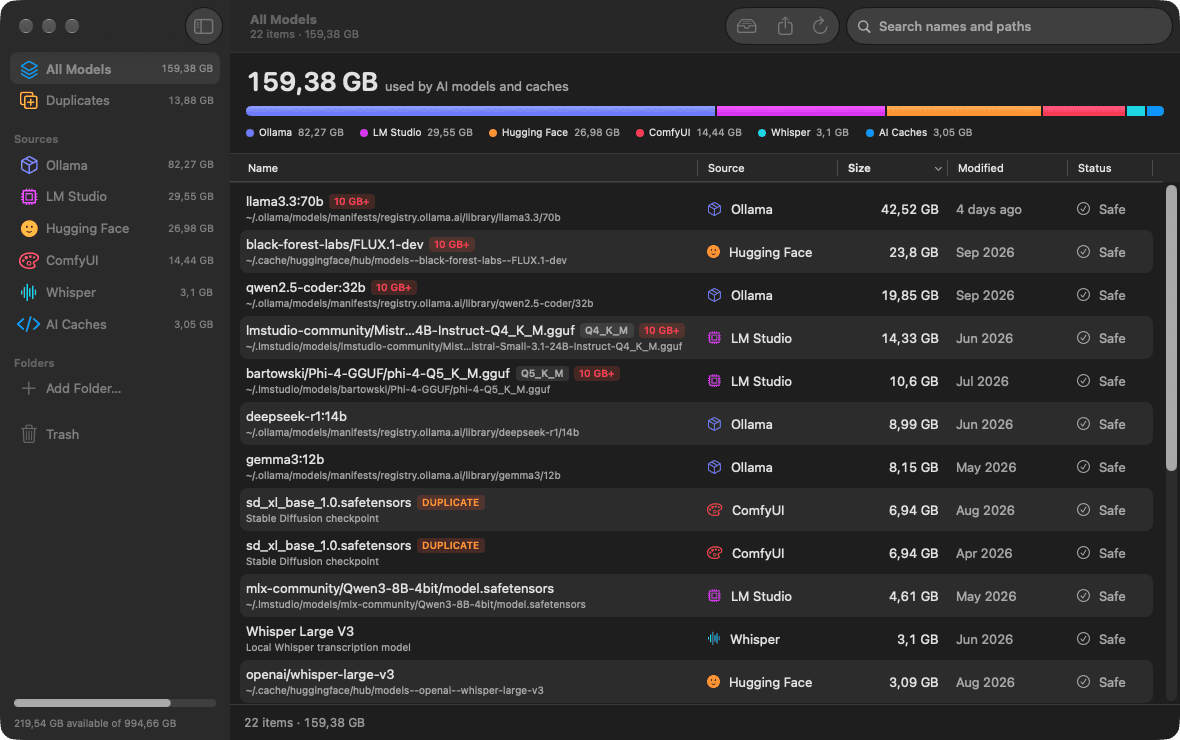
The commands above tell you how big folders are. They don't tell you which model a sha256-…blob belongs to, which files are duplicates, or what's safe to remove. LLM Cleaner does that part.
Real model names
Ollama blobs, Hugging Face snapshots and LM Studio folders are shown as the models they are, with one size each.
Every location, including moved ones
Respects OLLAMA_MODELS, HF_HOME, HF_HUB_CACHE, LM Studio's downloads folder and extra_model_paths.yaml.
Duplicates flagged
Files of 50 MB or more with the same size and a matching partial fingerprint are grouped, even across tools.
Trash first
Removed models go to the Trash or Recycle Bin and can be restored with one click.
FAQ
Where are AI models stored on my computer?
Each tool uses its own folder. Ollama uses .ollama/models in your home folder, LM Studio uses .lmstudio/models, Hugging Face uses .cache/huggingface/hub, Whisper uses .cache/whisper, and ComfyUI keeps a models folder inside its install. On Linux, the Ollama system service uses /usr/share/ollama/.ollama/models instead.
Why can’t I see these folders in Finder or File Explorer?
Folders whose names start with a dot are hidden on macOS and Linux. On Mac press Cmd + Shift + . in Finder; on Linux press Ctrl + H in most file managers. On Windows, dot-folders are visible, but %APPDATA% is hidden; turn on Hidden items in the File Explorer View menu.
Why does Ollama’s folder show only sha256 files?
Ollama stores model data as content-addressed blobs and keeps the human-readable model names in small manifest files. Use ollama list to see model names and sizes, and ollama rm to remove a model, rather than deleting blobs by hand.
Is it safe to delete the Hugging Face cache?
Yes, in the sense that anything in it can be downloaded again. Deleting a whole repo folder under hub removes that model; the next script that needs it will download it again. Deleting only blobs or only snapshots leaves the cache in a broken state.
What file types are AI models?
The common ones are .gguf (llama.cpp, Ollama, LM Studio), .safetensors (Hugging Face, ComfyUI, Stable Diffusion), .bin and .pt or .pth (PyTorch), .ckpt (older Stable Diffusion checkpoints) and MLX folders on Apple Silicon. Not every .bin file is a model, so check the folder before deleting.
Is there a tool that finds all of them at once?
LLM Cleaner scans every location above on Mac, Windows and Linux, shows each model with its real name and size, flags duplicates and moves what you remove to the Trash or Recycle Bin so it can be restored.
Find every model in one scan
LLM Cleaner runs on Mac, Windows and Linux. $19 once, for any two computers, and nothing leaves your machine.
One-time payment · use it on any 2 computers · also runs on NVIDIA DGX Spark · Already bought? Get your installer