Find and clean up every local AI model on your Mac
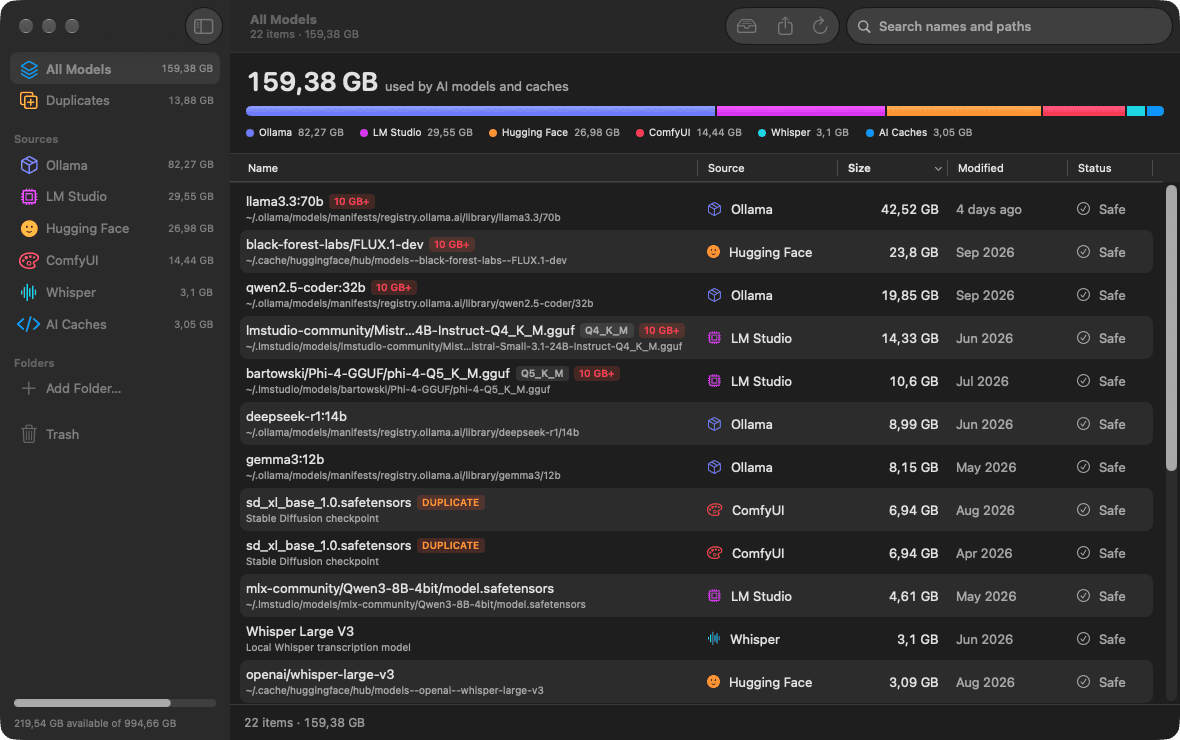
Ollama, LM Studio, Hugging Face, ComfyUI, Whisper and your AI coding assistants all keep multi-gigabyte files in different hidden folders. LLM Cleaner is a native Mac app that finds them in one scan, shows what each one is and how big it is, and lets you trash, restore or move them without breaking the tools that use them.
One-time payment · use it on any 2 computers · also runs on NVIDIA DGX Spark · Already bought? Get your installer
- Runs 100% on your Mac
- Everything goes to the Trash first
- $19 once, for any 2 computers
Who it's for
LLM Cleaner is for people who run models on their own Mac: developers testing Llama, Qwen or Mistral builds in Ollama, people comparing quantizations in LM Studio, Stable Diffusion and Flux users in ComfyUI, researchers pulling checkpoints with Transformers or mlx-lm, and anyone who transcribes with Whisper. It is also for people who never downloaded a model on purpose but use Cursor, Claude Code, Codex, Copilot or Windsurf every day and wonder why their disk keeps filling up.
If your MacBook has a 256 GB or 512 GB internal drive, a handful of models is enough to push you into the "Your disk is almost full" warning. A single large checkpoint can be bigger than your whole Photos library.
Where the space goes on a Mac
Each tool picks its own folder, most of them hidden. Finder doesn't show dot-folders by default, and the Storage panel in System Settings lumps much of this into System Data.
| Tool | Default location on macOS | What's in it |
|---|---|---|
| Ollama | ~/.ollama/models (or $OLLAMA_MODELS) | Blobs named by SHA-256 hash plus small manifest files. Several models can share one blob. |
| LM Studio | ~/.lmstudio/models, older installs ~/.cache/lm-studio/models | GGUF and MLX folders. You can point LM Studio at a custom downloads folder. |
| Hugging Face | ~/.cache/huggingface/hub (or $HF_HOME, $HF_HUB_CACHE) | Shared by Transformers, Diffusers, mlx-lm and many Python tools. Old revisions stay until removed. |
| ComfyUI | ~/Documents/ComfyUI/models (Desktop) or ComfyUI/models in a git checkout | Checkpoints, LoRAs, VAEs, upscalers. Extra folders come from extra_model_paths.yaml. |
| Whisper | ~/.cache/whisper | OpenAI Whisper checkpoints. whisper.cpp keeps its ggml files next to the build. |
| Cursor | ~/Library/Application Support/Cursor, ~/.cursor | Workspace storage, indexes and extension data. |
| Claude Code, Codex, Windsurf | ~/.claude, ~/.codex, ~/.codeium | Session history, project memory and caches. Some of it is worth keeping. |
Loose .gguf, .safetensors, .bin, .pt, .ckpt, .pth and .mlx files also pile up in Downloads and project folders. If your Storage bar is mostly grey, read how AI models end up in System Data.
Why cleaning this up by hand is risky
You can open these folders with Cmd + Shift + .in Finder and start dragging things to the Trash. It works until it doesn't. A few ways it goes wrong:
- Ollama blobs have no readable names.
~/.ollama/models/blobsis a list ofsha256-…files. Two models built on the same base share layers, so deleting the blob that looks like the old model can break the one you still use. - The Hugging Face cache is a set of links. Each repo has
blobs,snapshotsandrefs. Deleting a snapshot folder frees almost nothing, and deleting blobs leaves broken links behind. - Coding assistant folders mix caches with things you want.
~/.claudeholds project memory and settings next to session logs. Wiping it resets more than you expect. - Duplicates hide behind different names. The same weights pulled through Ollama and downloaded as a GGUF for LM Studio look like two unrelated files.
- rm -rf has no undo. Deleting in Terminal skips the Trash entirely.
For background, see how to clean up local AI models without breaking Ollama and what is safe to delete in Claude Code's project memory.
How LLM Cleaner handles it
Four steps, and nothing is permanent until you say so twice.
Scan
Open the app and it scans the known locations for every supported tool, including paths set with
OLLAMA_MODELS,HF_HOME,HF_HUB_CACHE, LM Studio's custom downloads folder and ComfyUI'sextra_model_paths.yaml. Add any other folder you keep models in.Review
Every model shows its source, real name, size, path and last-modified date. Sort by size, filter by tool, search by name, and use Show in Finderto see exactly what you're looking at. Duplicates of 50 MB or more are flagged.
Trash or move
Send what you don't need to the macOS Trash, or move big models to an external drive. Moved models leave a symlink behind, so your tools still find them.
Restore if you change your mind
Trashed models stay in the list with an "In Trash" badge. One click puts them back where they were. Permanent deletion asks for a second confirmation.
What you get
See the biggest files first
A single list across every tool, sorted by size, so the first few rows usually account for most of the space.
Ollama stays intact
Shared blob layers are counted once and never deleted while another model still uses them.
Find the same model twice
Files of 50 MB or more with the same size and a matching partial content fingerprint are flagged, even across tools.
Keep models on an external SSD
Move models off the internal drive. A symlink at the old path keeps Ollama, LM Studio and Python tools working.
Trash first, restore any time
Nothing is gone until you empty the Trash or confirm a permanent delete.
Export a Markdown report
A full inventory with source, path, size, dates and duplicate flags, handy before a reinstall or a new Mac.
Built in SwiftUI
A real Mac app, not a web wrapper: one universal binary for Apple Silicon and Intel, with Show in Finder on every model.
Nothing leaves your Mac
Only license activation and update checks touch the network. No file names, paths or models are uploaded.
Install
- Buy once for $19. Your license key and download link arrive right after checkout.
- Open the
.dmgand drag LLM Cleaner into Applications. - Launch it and paste your license key. That's the only time it needs to reach our server, apart from update checks.
- Run your first scan and sort by size. Add any custom folders you keep models in.
Requires macOS 14 Sonoma or later. One download runs on Apple Silicon and Intel.
First launch
If macOS says it can't verify the developer the first time you open the app, don't worry. Open System Settings → Privacy & Security, scroll down to the Security section and click Open Anyway next to the LLM Cleaner message. Confirm with your password or Touch ID. macOS remembers the choice, so you only do this once.
Why this happens: macOS checks every app downloaded from the web before its first launch. LLM Cleaner runs entirely on your Mac and never uploads your models, file names or paths.
Questions about the Mac app
Which Macs does LLM Cleaner run on?
Any Mac with macOS 14 Sonoma or later. It is a universal app, so the same download runs natively on Apple Silicon (M1 to M4 and later) and on Intel Macs.
Will deleting a model break Ollama or LM Studio?
Not if you remove whole models. LLM Cleaner treats an Ollama model as its manifest plus the blobs it uses, and it never deletes a blob that another model still needs. Everything goes to the macOS Trash first, so if something you still use disappears, you restore it with one click.
Why does macOS show my AI models as System Data?
Models live in hidden folders such as ~/.ollama and ~/.cache/huggingface, or inside ~/Library. The Storage panel in System Settings often cannot attribute those folders to an app, so their size ends up in the System Data bar. Removing the models shrinks it, although macOS can take a while to recalculate.
Can I move models to an external SSD and keep using them?
Yes. Pick the models, choose Move, and select a folder on the external drive. LLM Cleaner copies the files, checks them, and leaves a symlink at the old path, so Ollama, LM Studio and Hugging Face tools keep finding them. The drive needs to be connected when you load those models.
Does LLM Cleaner upload anything about my files?
No. Scanning, duplicate detection and reports all run on your Mac. The only network requests are license activation and update checks. Model files, file names and paths never leave your computer.
macOS says the app cannot be opened. What do I do?
Open System Settings, go to Privacy & Security, scroll to the Security section and click Open Anyway next to the LLM Cleaner message. Confirm once and macOS remembers your choice.
Can I use the same license on my Windows PC?
Yes. One $19 license works on any two computers in any combination of Mac, Windows and Linux.
Get your disk space back today
One scan shows every model on your Mac. Remove what you don't use, keep one copy of what you do, and undo anything with one click.
One-time payment · use it on any 2 computers · also runs on NVIDIA DGX Spark · Already bought? Get your installer