System Data huge on your Mac? AI models are a likely cause
If you use Ollama, LM Studio, Hugging Face, ComfyUI or an AI coding assistant, a large part of the grey System Data bar is often model files in hidden folders. Here's how they end up there, how to find them, and how to remove them without breaking anything.
macOS counts files it can't attribute to an app as System Data. AI tools keep their models in hidden folders like ~/.ollama, ~/.cache/huggingface and ~/.lmstudio, and in ~/Library/Application Support, so those gigabytes land in System Data. Run du -sh ~/.ollama ~/.cache/huggingface ~/.lmstudio in Terminal to see how much, then remove unused models through each tool or with LLM Cleaner, and empty the Trash.
What System Data actually is
Open System Settings → General → Storage. The coloured bar splits your disk into Applications, Documents, Photos, macOS and so on. System Data is what's left: everything macOS can't put in a named category. That usually includes:
- Caches and logs in
~/Library/Cachesand/Library - Time Machine local snapshots
- Virtual memory swap and sleep image files
- App support data in
~/Library/Application Supportand~/Library/Containers - Hidden dot-folders in your home folder, which is where most AI tools put their models
Older versions of macOS called this category "Other". The Storage panel doesn't let you click into it, which is why it feels like a black box.
How AI models and caches end up in System Data
None of these tools put models in Applications or Documents. They use developer-style hidden paths that Finder doesn't show by default.
| Source | Location | What grows |
|---|---|---|
| Ollama | ~/.ollama/models | Every model you have pulled, as hash-named blobs. |
| Hugging Face | ~/.cache/huggingface/hub | Transformers, Diffusers, mlx-lm and other Python tools, including old revisions. |
| LM Studio | ~/.lmstudio/models | GGUF and MLX models, often several quantizations of each. |
| Whisper | ~/.cache/whisper | Speech-to-text checkpoints. |
| ComfyUI Desktop | ~/Documents/ComfyUI, config in ~/Library/Application Support/ComfyUI | Models usually sit in Documents (counted as Documents), but the app data sits in Library. |
| Cursor | ~/Library/Application Support/Cursor | Workspace storage, indexes, extension data. |
| Claude Code, Codex, Windsurf | ~/.claude, ~/.codex, ~/.codeium | Session history, project memory and caches. |
| Docker Desktop | ~/Library/Containers/com.docker.docker | One disk image holding every container and volume, including Ollama or Open WebUI containers. |
Apple Intelligence also downloads on-device models. Those are managed by macOS; leave them alone.
Step by step: find what's inside your System Data
Show hidden files in Finder
Press Cmd + Shift + . in a Finder window. Dot-folders appear greyed out. Press Cmd + Shift + G and paste a path such as
~/.ollama/modelsto jump straight to it.Size the AI folders
Open Terminal and run:
du -sh ~/.ollama ~/.cache/huggingface ~/.lmstudio ~/.cache/lm-studio \
  ~/.cache/whisper ~/.claude ~/.codex ~/.codeium ~/.cursor 2>/dev/null
Look for other big hidden folders
List every dot-folder in your home folder by size:
du -sh ~/.[^.]* 2>/dev/null | sort -h | tail -15And the largest folders in your Library:
du -sh ~/Library/Application\ Support/* ~/Library/Caches/* 2>/dev/null | sort -h | tail -20Check Time Machine local snapshots
tmutil listlocalsnapshots /Snapshots can hold on to deleted files for a while. macOS removes them automatically when it needs space, so you rarely need to delete them yourself.
Shrink it safely
Ollama
Run ollama list, then ollama rm <name>for each model you don't use. Don't delete files in ~/.ollama/models/blobs by hand: blobs are shared between models. See how to delete Ollama models on Mac.
Hugging Face
Delete whole models--org--name folders in ~/.cache/huggingface/hub for models you no longer need. Anything here can be downloaded again. More in where Hugging Face models are stored.
LM Studio, ComfyUI and Whisper
Delete unused models from LM Studio's My Models view, prune checkpoints and loras in ComfyUI, and keep only the Whisper sizes you use. See LM Studio, ComfyUI and Whisper.
AI coding assistants
Caches can go, but some folders hold things you want, such as project memory or settings. Read what's safe to delete in Claude Code, Cursor workspace storage and the Windsurf cache first.
Then empty the Trash
Space only comes back after the Trash is emptied. The Storage panel can take a while to update; a restart usually makes it catch up.
Avoid "clean System Data" scripts that delete whole Library folders. Removing ~/Library/Application Support wholesale resets apps and can lose data. Delete specific things you recognise.
The faster way: let LLM Cleaner find it
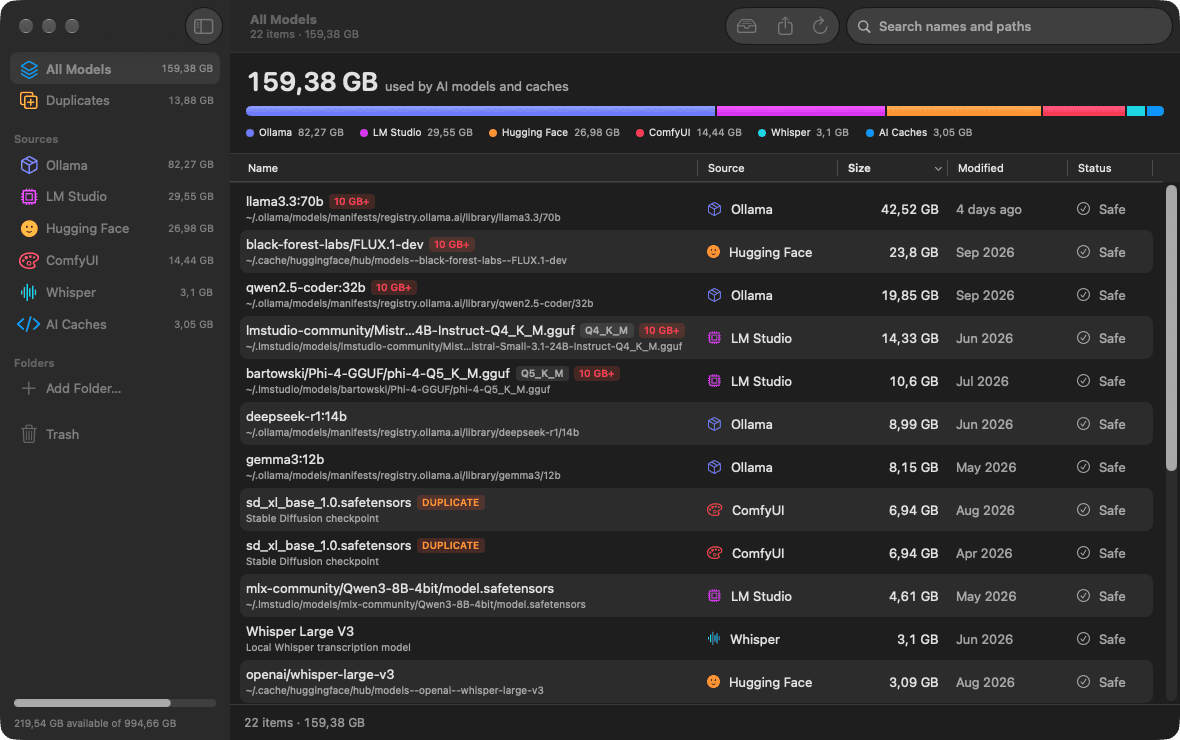
LLM Cleaner is a native Mac app that scans every AI location above in one pass and shows each model by name and size, so you can see how much of System Data is AI.
One list, sorted by size
Ollama, LM Studio, Hugging Face, ComfyUI, Whisper, coding caches and loose model files.
Safe for Ollama
Shared blobs are counted once and never deleted while another model uses them.
Move instead of delete
Send large models to an external SSD with a symlink left behind, so tools keep working.
Trash first
Everything you remove can be restored with one click until you empty the Trash.
FAQ
What is System Data on a Mac?
It is the part of the Storage bar in System Settings that macOS cannot assign to a specific category such as Applications, Documents or Photos. It includes caches, logs, temporary files, Time Machine local snapshots, virtual memory files, and app data stored in hidden folders and in ~/Library.
Why do AI models show up as System Data?
Most AI tools store models in hidden dot-folders in your home folder, such as ~/.ollama and ~/.cache/huggingface, or inside ~/Library. macOS often cannot link those folders to an app, so their size is counted in System Data rather than under the app that downloaded them.
Is it safe to delete System Data?
Not as a whole, and macOS does not offer a button for it. Delete specific things you recognise: AI models you no longer use, rebuildable caches, old Docker images. Leave system folders, Apple Intelligence files and anything under /System alone.
I deleted models but System Data did not shrink. Why?
Three common reasons: the files are still in the Trash, a Time Machine local snapshot still references them, or the Storage panel has not recalculated yet. Empty the Trash, wait a while or restart, and check again. macOS removes local snapshots on its own when it needs the space.
Does Ollama count as System Data?
On most Macs, yes. Ollama keeps models in ~/.ollama/models, a hidden folder that the Storage panel does not attribute to the Ollama app. A few large models are enough to make System Data jump by tens of gigabytes.
How do I clean AI models without breaking my tools?
Remove models through each tool (ollama rm, LM Studio’s delete) or use LLM Cleaner, which understands Ollama’s shared blobs, flags duplicates across tools and moves everything to the Trash first so it can be restored.
See how much of System Data is AI
One scan, every model, nothing uploaded. $19 once for any two computers, Mac, Windows or Linux.
One-time payment · use it on any 2 computers · also runs on NVIDIA DGX Spark · Already bought? Get your installer