How to free up disk space when running local LLMs
Running models locally is mostly a storage problem. Every model you try stays on disk until you remove it, often in more than one tool. Here's how to measure what you have, clear it out safely, and set things up so it doesn't fill up again.
Measure first, then work in this order: remove models you no longer use with each tool's own command (ollama rm, LM Studio's delete, the Hugging Face cache tools), delete duplicate copies of the same model across tools, switch to 4-bit or 5-bit quantizations where quality allows, move large models you keep to a second drive, and point every tool at one shared models folder.
Why local AI eats so much space
Three things combine:
- Models are big. A small chat model is a few gigabytes. Image checkpoints are several gigabytes each, and LoRAs, VAEs and ControlNets add up quickly. Larger LLMs run to tens of gigabytes.
- Nothing cleans up after itself. Ollama keeps every model you pull. The Hugging Face cache keeps old revisions after a model is updated. LM Studio keeps every quantization you download.
- Tools don't share.Ollama, LM Studio, the Hugging Face cache and ComfyUI each keep their own copy. Try the same model in two apps and it's on disk twice.
On top of models, AI coding assistants keep indexes and session data in your home folder. That's covered in why local AI agents fill your storage.
How big a model is, and why quantization matters
File size is roughly the number of parameters times the bytes stored per weight. For a 7-billion parameter model:
| Precision | Per weight | 7B model on disk |
|---|---|---|
| 16-bit (FP16 / BF16) | 2 bytes | about 14 GB |
| 8-bit (Q8_0) | about 1 byte | about 7 to 8 GB |
| 4-bit (Q4_K_M and similar) | about 0.5 to 0.6 bytes | about 4 to 5 GB |
These are approximations from the arithmetic, not measurements of a specific file. Scale linearly for bigger models: a 70B model is ten times larger at the same precision. If you mostly chat or code, a 4-bit or 5-bit GGUF is usually a good trade, and keeping one quantization per model instead of three saves the most.
Step by step: free up space by hand
Measure what you have
Size each tool's folder before you delete anything. On Mac and Linux:
du -sh ~/.ollama ~/.cache/huggingface ~/.lmstudio ~/.cache/whisper 2>/dev/nullOn Windows, and for ComfyUI and coding caches, use the commands in how to find hidden AI model files.
Remove Ollama models you don't use
List them with sizes, then remove by name. This keeps shared layers that other models still need.
ollama list
ollama rm llama3.1:70b
More detail in how to delete Ollama models.
Clean up LM Studio
Open the My Models view, sort by size and delete quantizations you don't use. If you downloaded Q4, Q5 and Q8 of the same model to compare, keep one. See LM Studio models taking too much space.
Trim the Hugging Face cache
Delete whole repo folders under
hub/(named likemodels--org--name), not individual blobs or snapshots. Hugging Face's CLI also has a cache scanner (huggingface-cli scan-cache; newer releases use thehfcommand) that shows which repos and revisions take the most space.Go through ComfyUI and Whisper
In ComfyUI, sort
models/checkpointsandmodels/lorasby size and remove what your current workflows don't load. For Whisper, you rarely need more than one or two model sizes. See ComfyUI models taking too much space.Look for duplicates
The same weights often exist as an Ollama blob, an LM Studio GGUF and a Hugging Face download. Keep the copy in the tool you actually use. Comparing file sizes is a start; files with identical sizes are worth a closer look. Background in duplicate AI models across tools.
Empty the Trash or Recycle Bin
Space only comes back once the Trash is emptied. Do this last, after you've checked your tools still work.
Keep it from filling up again
Use one models folder per tool, on a drive with room
Point each tool at a folder on your largest drive: set OLLAMA_MODELS for Ollama, set HF_HOME or HF_HUB_CACHEfor Hugging Face, change the models folder in LM Studio, and add a shared path in ComfyUI's extra_model_paths.yaml. New downloads then land there instead of on your system drive.
Move the big ones you keep
Models you use every day can stay on the internal drive. Models you keep "just in case" can live on an external SSD. A symlink (or a junction on Windows) at the old path lets the tool find them without reconfiguration. The manual steps are in moving models to an external drive; on Windows see moving models to D:.
Review every month or two
Sort everything by size and last-modified date. Anything large that you haven't opened since you downloaded it is the first to go.
Before you delete: fine-tunes, merges and LoRAs you trained yourself may not exist anywhere else. Back them up first. Everything downloaded from Ollama, Hugging Face or Civitai can be downloaded again.
The faster way: LLM Cleaner
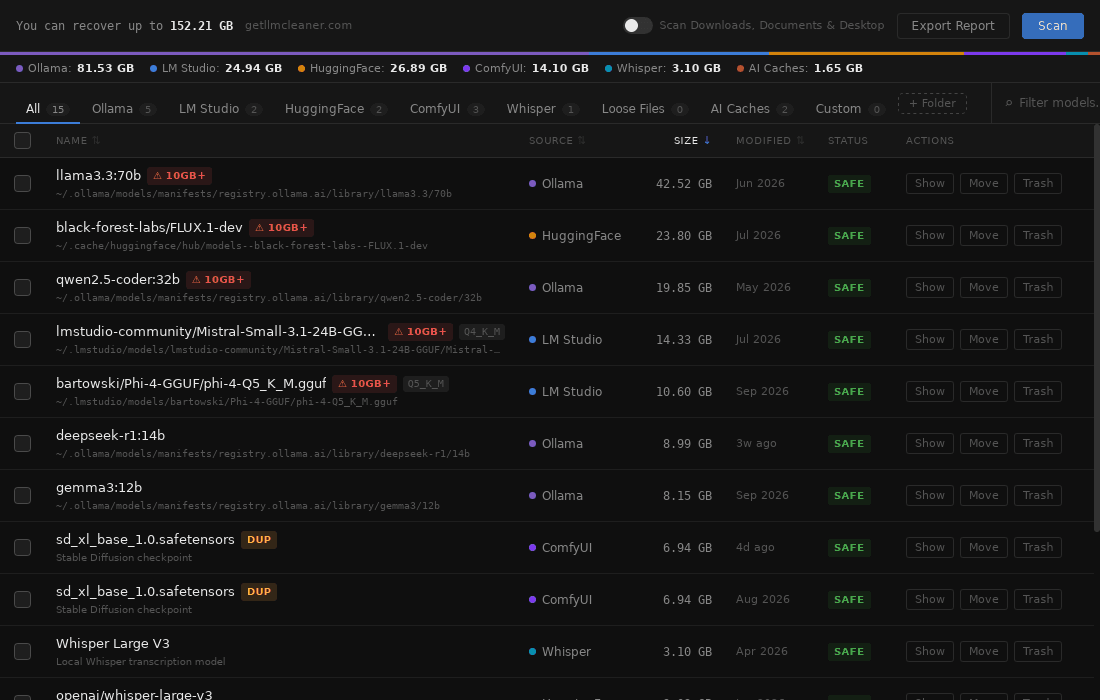
The manual route means visiting five or six tools, each with its own folder layout. LLM Cleaner puts them in one list on Mac, Windows and Linux.
Everything, sorted by size
Ollama, LM Studio, Hugging Face, ComfyUI, Whisper, AI coding caches, loose model files and your own folders.
Duplicates flagged
Same size plus a partial content fingerprint, for files of 50 MB or more, across tools.
Off the system drive
Move models to another drive and leave a link behind, so nothing needs reconfiguring.
Reversible by default
Deletes go to the Trash or Recycle Bin. One click restores. Shared Ollama blobs are never double-deleted.
FAQ
How much disk space do I need for local LLMs?
Roughly the parameter count times the bytes per weight. A 7B model is about 14 GB at 16-bit and about 4 to 5 GB at 4-bit. Add the size of every model you keep, then leave headroom, because downloads need temporary space and macOS and Windows slow down when the system drive is nearly full.
Which models can I delete safely?
Anything you can download again and haven’t used recently: test pulls, older quantizations of a model you have in a newer one, and old Hugging Face revisions. Be more careful with fine-tunes, LoRAs or merges you made yourself, which may not exist anywhere else.
Does deleting a model in one tool remove it from the others?
No. Ollama, LM Studio, Hugging Face and ComfyUI each keep their own copy. That is also why the same model often takes up space two or three times.
Can I run models from an external drive?
Yes. Loading takes longer from a slower drive, but once the whole model is loaded into memory, generation speed is not affected. Use a fast USB or Thunderbolt SSD and keep it connected while you work.
Do AI coding assistants use a lot of space?
They can. Cursor, Claude Code, Codex, Copilot and Windsurf keep indexes, logs, session history and caches that grow over time. Some of that is project memory you may want to keep, so review before deleting.
What is the quickest way to see everything at once?
LLM Cleaner scans Ollama, LM Studio, Hugging Face, ComfyUI, Whisper, AI coding caches, loose model files and custom folders in one pass, on Mac, Windows and Linux, and shows them in a single list sorted by size.
Reclaim the space in one pass
See every model you have, keep one copy of each, and undo anything. $19 once for any two computers, and it all runs locally.
One-time payment · use it on any 2 computers · also runs on NVIDIA DGX Spark · Already bought? Get your installer