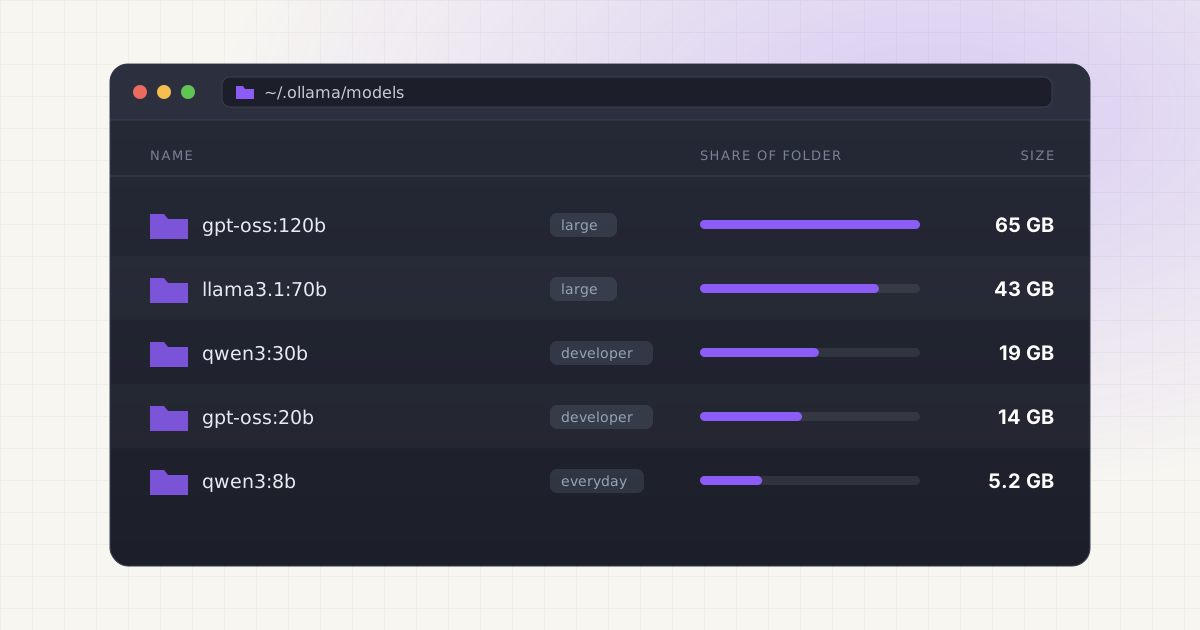
For casual use, a few small chat models, you need about 10 to 20 GB of free space. A developer who tries several coding and reasoning models in Ollama and LM Studio can easily pass 60 GB. Image generation with Flux and SDXL starts around 40 GB before LoRAs. One large model in the 70B to 120B range adds 40 to 65 GB by itself.
In practice that means a 256 GB Mac can handle casual use, a 512 GB Mac fits a developer setup if you prune, 1 TB is comfortable for most people, and 2 TB is for keeping several large models at once. The figures below come from the sizes listed on Ollama's library and Hugging Face model pages, so you can redo the maths for your own list.
Key takeaways
- An 8B model at 4-bit is about 5 GB. A 30B model is about 19 GB. A 70B model is 43 GB, and gpt-oss:120b is 65 GB.
- The same model at full precision can be six times bigger: Llama 3.1 8B is 4.92 GB as a Q4_K_M GGUF and 32.1 GB as f32.
- Downloading a whole Hugging Face repo can pull far more than you need. The SDXL base repo totals 76.9 GB, but the main checkpoint is 6.94 GB.
- Your Mac's memory, not its disk, decides which models are worth keeping. A model too big to load is wasted space.
- An external SSD with a symlink at the original path, deduplication across tools and regular pruning keep a 512 GB Mac workable.
Real model sizes
These are the sizes Ollama lists for each tag. Ollama's defaults are 4-bit quantizations, which is what most people run.
| Model (Ollama tag) | Listed size |
|---|---|
| gemma3:1b | 806MB |
| llama3.2:3b | 2.0GB |
| gemma3:4b | 3.4GB |
| qwen2.5-coder:7b | 4.7GB |
| llama3.1:8b | 4.9GB |
| qwen3:8b | 5.2GB |
| qwen2.5-coder:14b | 9.0GB |
| gpt-oss:20b | 14GB |
| gemma3:27b | 17GB |
| qwen3:30b | 19GB |
| qwen3:32b | 20GB |
| llama3.1:70b | 43GB |
| gpt-oss:120b | 65GB |
| qwen3:235b | 142GB |
| llama3.1:405b | 243GB |
| deepseek-r1:671b | 404GB |
Sources: Ollama library pages for gemma3, llama3.2, qwen2.5-coder, llama3.1, qwen3, gpt-oss, deepseek-r1
Image and speech models are measured the same way. These are file sizes from the Hugging Face model pages:
| File | What it is | Size |
|---|---|---|
flux1-dev.safetensors | FLUX.1 [dev] image model | 23.8 GB |
t5xxl_fp16.safetensors | Flux text encoder, full | 9.79 GB |
t5xxl_fp8_e4m3fn.safetensors | Flux text encoder, smaller | 4.89 GB |
sd_xl_base_1.0.safetensors | SDXL base checkpoint | 6.94 GB |
model.safetensors (whisper-large-v3) | Whisper large-v3 | 3.09 GB |
ae.safetensors | Flux VAE | 335 MB |
clip_l.safetensors | Flux CLIP encoder | 246 MB |
Sources: FLUX.1-dev, flux_text_encoders, SDXL base 1.0, whisper-large-v3
Ollama, Hugging Face and macOS all count a gigabyte as one billion bytes, so these numbers line up with what Finder shows. Source Source
Why the same model can be 5 GB or 32 GB
File size depends mostly on the number of parameters and how many bits each one is stored in. Here is one model, Llama 3.1 8B Instruct, in different forms:
| Version | Size |
|---|---|
MLX 4-bit (mlx-community/Meta-Llama-3.1-8B-Instruct-4bit) | 4.52 GB |
Ollama llama3.1:8b | 4.9GB |
| GGUF Q4_K_M | 4.92 GB |
| GGUF Q6_K | 6.6 GB |
| GGUF Q8_0 | 8.54 GB |
Ollama llama3.1:8b-instruct-fp16 | 16GB |
| GGUF f32 | 32.1 GB |
Sources: mlx-community, bartowski GGUF, Ollama llama3.1
Two lessons come out of this. Pick one quantization and stick with it, because downloading Q4, Q6 and Q8 to compare them stores all three. And notice how close the first three rows are. If you have the same 8B model in Ollama, as a GGUF in LM Studio and as MLX, that's about 14 GB for one model. Our post on duplicate models across Ollama, LM Studio and Hugging Face covers how that happens.
Typical setups, mapped to Mac storage
These setups add up listed sizes from the tables above. They're examples, not measurements of anyone's Mac. Swap in the models you actually use.
| Setup | What's in it | Approx. size | 256 GB | 512 GB | 1 TB | 2 TB |
|---|---|---|---|---|---|---|
| Casual chat | llama3.2:3b, gemma3:4b, qwen3:8b | 11 GB | Yes | Yes | Yes | Yes |
| Developer | qwen2.5-coder 7b and 14b, gpt-oss:20b, qwen3:30b, deepseek-r1:14b, one GGUF and one MLX copy in LM Studio | 65 GB | Tight | Yes, with pruning | Yes | Yes |
| Image generation | Flux dev with full text encoder, CLIP and VAE, plus SDXL base. LoRAs extra. | 41 GB | Tight | Yes | Yes | Yes |
| Large models | llama3.1:70b, gpt-oss:120b, qwen3:32b | 128 GB | No | Tight | Yes | Yes |
| All of the above | Developer + image + large | 234 GB | No | No | Yes, if little else | Yes |
Sizes from Ollama's library and the Hugging Face pages cited above. deepseek-r1:14b is listed at 9.0GB. Source
"Tight" means it fits on paper but leaves little room for macOS, apps, photos and updates. A 256 GB Mac has less usable space than the label says once the system and apps are installed, and AI tools aren't the only thing growing.
256 GB
Treat local models as temporary. Keep two or three small models, delete what you're done with, and put anything bigger on an external SSD from day one. LM Studio's own docs say 8 GB Macs should "stick to smaller models", which conveniently also keeps disk use small. Source
512 GB
The most common place people run into trouble. A developer setup fits, but one experiment with a 70B model, a Flux workflow and a few duplicate copies can take 100 GB in a weekend. Prune monthly and move what you keep but rarely use.
1 TB
Comfortable for one serious use case plus casual use of another, for example a full coding setup and some image generation. Large models fit, but keeping several at once still adds up quickly.
2 TB and up
Enough to keep large models around for comparison. The limit here usually stops being disk and becomes memory.
Memory decides what's worth storing
On Apple Silicon, a model has to fit in unified memory alongside macOS and your apps to run well. LM Studio recommends 16 GB of RAM or more on a Mac, and says it requires Apple Silicon and macOS 14 or newer. Source If a model is too big to load on your Mac, keeping it on disk only costs you space.
So check before you pull. On a 16 GB Mac, a 43 GB llama3.1:70b won't fit in memory however much free disk you have. On a 64 GB or 128 GB Mac, large models make sense, and disk becomes the constraint. That's when a 1 TB or 2 TB internal drive, or an external SSD, starts to matter.
Check how much you're using now
System Settings > General > Storage shows the overview, but models usually end up hidden in System Data or Developer rather than under their own name. Our guide to AI models in Mac System Data explains why. To measure directly, open Terminal:
du -sh ~/.ollama/models ~/.lmstudio/models ~/.cache/lm-studio/models \
  ~/.cache/huggingface ~/.cache/whisper 2>/dev/null
Then list what's inside the two biggest folders:
ollama list
hf cache ls
hf cache ls prints each cached Hugging Face repo with its size and when it was last accessed. Source ComfyUI keeps models in its own models folder, plus anything listed in extra_model_paths.yaml. For every other location, including AI coding caches, see how to find hidden AI model files.
Want the total in one number?
LLM Cleaner scans Ollama, LM Studio, Hugging Face, ComfyUI, Whisper and coding caches on your Mac and lists every model by size.
Keeping it manageable
1. Download single files, not whole repos
Hugging Face repos often hold several formats of the same weights. The whisper-large-v3 repo totals 24.7 GB, but the one model.safetensors file most apps need is 3.09 GB. Source The SDXL base repo totals 76.9 GB for a 6.94 GB checkpoint. Source Download the specific file you need:
hf download stabilityai/stable-diffusion-xl-base-1.0 sd_xl_base_1.0.safetensorsAdd --dry-run first to see how much a command would download before it starts. Source
2. Prune on a schedule
Nothing deletes itself. Ollama keeps every model you pull, and the Hugging Face cache keeps old revisions when a repo is updated. Source Once a month:
ollama rm <model>for anything you haven't used. Step by step in how to delete Ollama models on Mac.hf cache ls --filter "accessed>30d"to find stale repos, thenhf cache rmto remove them andhf cache pruneto clear old revisions and partial downloads. Source- In LM Studio's My Models tab, keep one quantization per model. See LM Studio models taking too much space.
- In ComfyUI, sort
models/checkpointsandmodels/lorasby size. More in ComfyUI models on Mac.
3. Remove duplicates
Ollama, LM Studio and Hugging Face don't share files. The same model downloaded in each is stored three times. Decide which tool is your main one and keep the copy there.
4. Move what you keep to an external SSD
Models you want to keep but rarely use can live on an external drive. Either point the tool at the new folder (OLLAMA_MODELS, LM Studio's models directory, HF_HOME), or move the folder and leave a symlink at the original path so the tool doesn't notice. Source Format the drive as APFS, because the Hugging Face cache relies on symlinks. Source Loading from a fast external SSD is slower than from the internal drive, but once a model is in memory it runs at the same speed. The full walkthrough is in moving AI models to an external drive.
Who this is for
- Developers on a 512 GB MacBook. You have Xcode, Docker images and node_modules competing for the same disk. A few coding models are fine, but the trial-and-error part of picking one is what fills the drive.
- ComfyUI artists. Checkpoints, LoRAs, text encoders and upscalers each look small next to Flux, but a collection of LoRAs adds up and nobody remembers which workflow needs which file.
- People choosing a new Mac. If you plan to run local models seriously, the table above is a better guide to storage than a general rule of thumb. Memory matters more for what you can run, storage for how many you can keep.
- Anyone whose Mac says storage is almost full. If System Data is huge and you've used Ollama, LM Studio or an AI coding assistant, models and caches are a likely part of it.
Doing it with LLM Cleaner
All of the above works by hand. It's just spread across five tools with five folder layouts. LLM Cleaner for Mac puts it in one list:
- One scan covers Ollama (including a custom
OLLAMA_MODELSfolder), LM Studio (~/.lmstudio/models,~/.cache/lm-studio/modelsand a custom download folder), Hugging Face (HF_HOME,HF_HUB_CACHE), ComfyUI includingextra_model_paths.yaml, Whisper, AI coding caches (Cursor, Claude Code, Codex, Copilot, Windsurf), loose.gguf,.safetensors,.ckpt,.pt,.binand.mlxfiles, and any folder you add. - Ollama by name. Blobs show up as models. Layers shared between models are counted once and never removed while another model uses them.
- Duplicates. Files of 50 MB or more with the same size and a matching content fingerprint are flagged, so you can keep one copy.
- Trash first. Deleted models go to the macOS Trash with one-click restore.
- Move to an external drive. Pick a destination and the app leaves a symlink at the old path, so Ollama, LM Studio and ComfyUI keep working.
- Markdown report. Export the inventory to see what you have before you decide.
It's a native SwiftUI app for macOS 14 and later, universal for Apple Silicon and Intel. It runs entirely on your Mac. Only the license and update checks go online. One $19 license covers two computers, any mix of Mac, Windows and Linux.
Make 512 GB feel bigger.
Find every model, drop the duplicates, move the big ones to an external SSD with a symlink left behind. $19 once for two computers.
FAQ
How much storage does a local LLM need?
It depends on size and quantization. At Ollama's default 4-bit settings, a 3B model is about 2 GB, an 8B model about 5 GB, a 30B model about 19 GB and a 70B model 43 GB.
Is 256 GB enough to run local LLMs on a Mac?
For a few small models, yes. Two or three 3B to 8B models take around 10 GB. Anything larger, or image generation, works better with an external SSD.
Is 512 GB enough?
For most developers, yes, if you prune regularly and avoid keeping the same model in several tools. Large 70B+ models and a Flux setup together will make it tight.
Should I buy more storage or more memory?
Memory decides which models you can run well. Storage decides how many you can keep. If you can only upgrade one, memory usually matters more for local LLMs, and an external SSD can make up for storage.
Can I run models from an external drive?
Yes. Loading takes longer from a slower drive, but once a model is loaded into memory, speed is the same. Use APFS and keep the drive connected while the tool is running.
Why is my Ollama folder bigger than the models I have?
Usually leftover blobs from interrupted or replaced downloads. Restarting Ollama prunes them. See why Ollama takes up so much disk space.