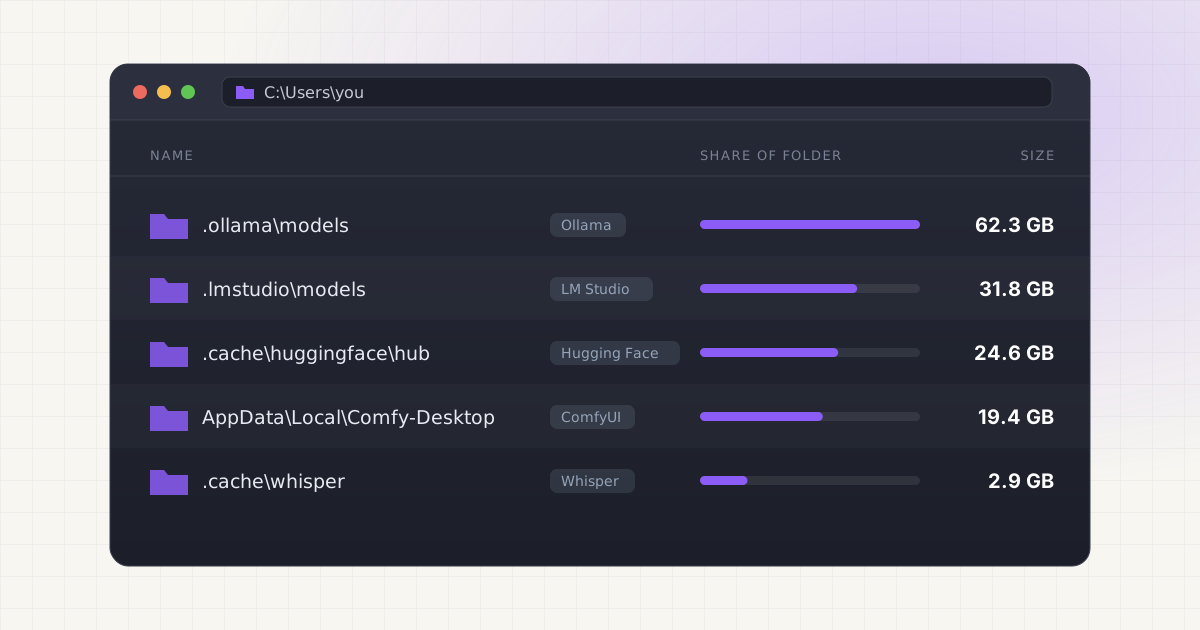
On Windows, almost every local AI tool stores its models inside your user profile, C:\Users\<you>. Ollama uses .ollama\models, LM Studio uses .lmstudio\models, Hugging Face uses .cache\huggingface\hub, and ComfyUI uses either its own models folder or, for the Desktop app, a shared folder under AppData. That's true even if you installed the program on D:.
Each of those defaults can be changed, usually with an environment variable. So the real answer to "where are my models?" is the default path, unless someone (often you, six months ago) set a variable that points somewhere else. This guide gives you both, plus how to measure each folder in File Explorer and PowerShell.
Key takeaways
- Ollama:
C:\Users\<you>\.ollama\models, moved withOLLAMA_MODELS. - LM Studio:
C:\Users\<you>\.lmstudio\models(older installs used.cache\lm-studio\models), changed from the My Models tab. - Hugging Face:
C:\Users\<you>\.cache\huggingface\hub, moved withHF_HOMEorHF_HUB_CACHE. - ComfyUI:
ComfyUI\modelsfor the portable build,%LOCALAPPDATA%\Comfy-Desktop\ComfyUI-Sharedfor current Desktop installs, plus anything inextra_model_paths.yaml. - Without Developer Mode, the Hugging Face cache can't use symlinks on Windows and may store the same file more than once.
Every default path in one table
| Tool | Default model folder on Windows | How to change it |
|---|---|---|
| Ollama | %USERPROFILE%\.ollama\models | OLLAMA_MODELS user variable |
| LM Studio | %USERPROFILE%\.lmstudio\models | My Models tab, models directory |
| Hugging Face | %USERPROFILE%\.cache\huggingface\hub | HF_HOME or HF_HUB_CACHE |
| ComfyUI portable | ComfyUI_windows_portable\ComfyUI\models | extra_model_paths.yaml |
| ComfyUI Desktop | %LOCALAPPDATA%\Comfy-Desktop\ComfyUI-Shared | Storage tab or extra_models_config.yaml |
| OpenAI Whisper | %USERPROFILE%\.cache\whisper | download_root argument or XDG_CACHE_HOME |
Sources: Ollama FAQ, LM Studio docs, Hugging Face environment variables, ComfyUI Desktop for Windows, openai-whisper source
%USERPROFILE% is the shortcut Windows uses for C:\Users\<you>. You can paste these paths straight into the Explorer address bar.
Mac and Linux paths are on our hidden AI model files page.
Ollama
Ollama's FAQ lists the Windows model folder as C:\Users\%username%\.ollama\models. Source Its Windows docs break the install into three locations: Source
%HOMEPATH%\.ollamaholds models and configuration.%LOCALAPPDATA%\Programs\Ollamaholds the program itself. The installer adds it to your user PATH.%LOCALAPPDATA%\Ollamaholds logs and downloaded updates, includingserver.log.
Inside models you'll find two folders. manifests holds small files named after each model and tag. blobs holds the actual weights as files named sha256- followed by a long hash. So the folder alone won't tell you which file is which model.
The installer lets you put the program elsewhere with OllamaSetup.exe /DIR="D:\some\location", but that flag does not move your models. For models you set OLLAMA_MODELS as a user environment variable, then quit Ollama from the system tray and start it again. Source
To confirm which folder the running server actually uses, check the startup line it writes to its log. It lists the OLLAMA_MODELS value it loaded:
Select-String -Path "$env:LOCALAPPDATA\Ollama\server.log" -Pattern "OLLAMA_MODELS" | Select-Object -Last 1More on the manifest and blob layout in where Ollama stores models. The Mac paths differ, but the structure inside models is the same.
LM Studio
LM Studio keeps downloaded models in C:\Users\<you>\.lmstudio\models. Older versions used C:\Users\<you>\.cache\lm-studio\models, so check both if you've had LM Studio for a while. Models are sorted into a publisher\model structure that mirrors Hugging Face, for example lmstudio-community\Qwen3-8B-GGUF\. Source
To use a different folder, the docs say to head to My Models and change the models directory there. Source There's no environment variable for this. If you change the folder, LM Studio only lists what's in the new one, which makes it easy to forget the old folder still has files in it.
LM Studio stores each quantization as a separate file. If you downloaded Q4, Q5 and Q8 of one model to compare them, all three are on disk. Our post on LM Studio models taking too much space covers trimming them.
Hugging Face
Anything built on huggingface_hub (Transformers, Diffusers, faster-whisper, many Python scripts and notebooks) downloads into one shared cache. The documented default is ~/.cache/huggingface/hub, which on Windows becomes C:\Users\<you>\.cache\huggingface\hub. Source
Two variables move it. HF_HOME moves the whole Hugging Face folder, including your token, and the cache lives in its hub subfolder. HF_HUB_CACHE moves only the model cache and takes priority. Source Set them before starting Python.
Each model gets one folder named like models--black-forest-labs--FLUX.1-dev. Inside are blobs (the real files), snapshots (one folder per downloaded revision) and refs. Source Downloads through Xet also create a xet folder next to hub, used for upload staging. Source
To list what's cached and how big it is, the current CLI command is:
hf cache lsIt prints each repo with its size and when it was last accessed. hf cache rm deletes a repo and hf cache prune removes old revisions and leftover partial downloads. Source
ComfyUI
ComfyUI doesn't have a single default. It depends on how you installed it.
- Portable build. Models live wherever you unzipped it, in
ComfyUI_windows_portable\ComfyUI\models, sorted intocheckpoints,loras,vae,controlnetand so on. Source - Comfy Desktop. Current installs keep the shared model library in
%LOCALAPPDATA%\Comfy-Desktop\ComfyUI-Sharedand installations in%LOCALAPPDATA%\Comfy-Desktop\ComfyUI-Installs. Older installs may use%USERPROFILE%\ComfyUI-Sharedand%USERPROFILE%\ComfyUI-Installs. Settings are in%APPDATA%\Comfy Desktop. Source - Extra paths. Any install can load models from more folders listed in
extra_model_paths.yamlin the ComfyUI root. Desktop keeps the equivalent file atC:\Users\<you>\AppData\Roaming\ComfyUI\extra_models_config.yaml. Source
If you've used both portable and Desktop, you probably have two model libraries. Open each YAML file to see every folder ComfyUI reads from. Uninstalling Comfy Desktop removes the launcher only. The docs say the shared library and install folders must be deleted by hand. Source More on what each subfolder holds in ComfyUI models taking too much space.
Whisper and AI coding tools
The openai-whisper Python package downloads models to ~/.cache/whisper, which is C:\Users\<you>\.cache\whisper on Windows, unless XDG_CACHE_HOME is set. Source faster-whisper and Transformers-based Whisper use the Hugging Face cache instead.
AI coding assistants (Cursor, Claude Code, Codex, Copilot, Windsurf) don't usually store model weights locally, but they do build indexes, logs and session history in your profile and in AppData. Our hidden AI files guide lists those folders.
Check whether a path was overridden
Before you measure anything, find out whether any tool has been pointed somewhere else. In PowerShell:
Get-ChildItem Env: | Where-Object Name -match '^(OLLAMA_|HF_|XDG_)'That shows variables in your current session. A new terminal reads the saved user and system variables. To check each scope separately:
[Environment]::GetEnvironmentVariable('OLLAMA_MODELS', 'User')
[Environment]::GetEnvironmentVariable('OLLAMA_MODELS', 'Machine')
[Environment]::GetEnvironmentVariable('HF_HOME', 'User')
If a value comes back, the default folder may be nearly empty and the real models live at that path. For LM Studio, look at the path shown in My Models. For ComfyUI, read the YAML files above.
Skip the path hunt.
LLM Cleaner for Windows finds Ollama, LM Studio, Hugging Face, ComfyUI and Whisper models, including custom OLLAMA_MODELS and HF_HOME folders, in one scan.
How to see folder sizes in File Explorer
Explorer is the quickest check for one folder:
- Paste
%USERPROFILE%into the address bar and press Enter. - Right-click
.ollama,.lmstudioor.cacheand choose Properties. Wait for the Size line to stop counting. - For ComfyUI Desktop, go to
%LOCALAPPDATA%\Comfy-Desktopthe same way.
Folders that start with a dot, like .ollama, are not hidden on Windows. AppData is. If you browse to it by clicking instead of typing, turn on hidden items first. On Windows 11 that's View > Show > Hidden items. On Windows 10 it's View > Options > Change folder and search options, then the View tab and "Show hidden files, folders, and drives". Source
Settings > System > Storage gives a whole-drive overview, but it groups everything into categories and never names model folders. AI models usually end up under "Other" or inside "Apps". If your C: drive is already full, our C: drive full from AI models guide walks through moving each tool to D:.
How to measure every model folder in PowerShell
This script sizes each default folder plus any custom folder set by environment variable, and skips the ones that don't exist:
$paths = @(
  "$env:USERPROFILE\.ollama\models",
  "$env:USERPROFILE\.lmstudio\models",
  "$env:USERPROFILE\.cache\lm-studio\models",
  "$env:USERPROFILE\.cache\huggingface",
  "$env:USERPROFILE\.cache\whisper",
  "$env:LOCALAPPDATA\Comfy-Desktop\ComfyUI-Shared",
  "$env:USERPROFILE\ComfyUI-Shared",
  $env:OLLAMA_MODELS, $env:HF_HOME, $env:HF_HUB_CACHE
) | Where-Object { $_ -and (Test-Path $_) } | Select-Object -Unique

foreach ($p in $paths) {
  $bytes = (Get-ChildItem $p -Recurse -File -Force -ErrorAction SilentlyContinue |
            Measure-Object Length -Sum).Sum
  "{0,8:N1} GB  {1}" -f ($bytes / 1GB), $p
}
To find large model files anywhere in your profile, including loose downloads in Downloads or a forgotten project folder:
$types = '*.gguf', '*.safetensors', '*.ckpt', '*.pt', '*.pth', '*.bin'
Get-ChildItem $env:USERPROFILE -Recurse -File -Force -Include $types -ErrorAction SilentlyContinue |
  Where-Object Length -gt 500MB |
  Sort-Object Length -Descending |
  Select-Object -First 25 @{ n = 'GB'; e = { [math]::Round($_.Length / 1GB, 1) } }, FullName
Add your ComfyUI portable folder to $paths if it lives outside your profile.
Windows-specific gotchas
The Hugging Face cache and symlinks
The Hugging Face cache is designed around symbolic links: files in snapshots point to the single copy in blobs. Windows only lets regular users create symlinks when Developer Mode is on. Without it, huggingface_hub switches to what it calls a degraded mode: real file copies go straight into snapshots, and "the same file content may be duplicated across revisions, increasing disk usage". Source You'll see a warning when this happens. Setting HF_HUB_DISABLE_SYMLINKS_WARNING=1 hides the warning but doesn't fix the duplication. Source
The fix Hugging Face recommends is to turn on Developer Mode or run Python as administrator. Source Microsoft moved the switch in Windows 11 25H2: it's now in Settings > System > Advanced, in the For developers section. Earlier versions have a separate For developers page. Turning it on needs admin rights. Source Files already downloaded in degraded mode stay as copies. To reclaim that space, delete the affected repos with hf cache rm and download them again.
Environment variables only apply after a restart
Ollama reads OLLAMA_MODELS when it starts. If you set the variable while the tray app is running, nothing changes until you quit it and start it again from the Start menu. Source Terminals work the same way: one that was open before you set the variable still has the old value. This is the most common reason for "I moved my models but Ollama is still filling C:".
Explorer's GB and Ollama's GB aren't the same
ollama list counts a gigabyte as 1,000,000,000 bytes. Source Explorer and PowerShell's 1GB count it as 1,073,741,824 bytes. A model Ollama lists at 4.9 GB shows as about 4.6 GB in Explorer. Nothing is missing.
Junctions vs. symbolic links
If you move a model folder to D: and leave a link behind, a directory junction (mklink /J) works across local drives and needs no special rights. Junctions can only point to folders, and they can't point to a mapped network drive. Source A link to a single file needs a symbolic link, which needs Developer Mode or an elevated prompt. Source
Deleting from the command line skips the Recycle Bin
ollama rm, hf cache rm, del and Remove-Item all delete files outright. Even in Explorer, each drive's Recycle Bin has a size limit, and a multi-gigabyte model folder can trigger a prompt to delete it permanently instead. If you want an undo, check before you confirm. The full Ollama procedure is in how to delete Ollama models on Windows.
Who this is for
- Gamers with a full C: drive. You installed Ollama or ComfyUI on D: next to your games and assumed the models went there too. They didn't. A couple of 20 GB downloads and a Steam update is enough to hit the red bar.
- Developers on a laptop with one SSD. You've tried models in Ollama, LM Studio and a Python notebook. That's three separate folders, often holding the same model three times.
- ComfyUI and Stable Diffusion users. Checkpoints, LoRAs, VAEs and text encoders pile up across a portable folder, a Desktop install and maybe an old Automatic1111 folder.
The manual route works. It just costs time: one folder per tool, a script, and guesswork about which hashed blob is which model.
Doing it with LLM Cleaner
LLM Cleaner for Windows does the path hunt and the measuring in one scan. It checks:
- Ollama, including a custom
OLLAMA_MODELSfolder. Blobs show up under their real model names, and layers shared between models are counted once and never removed while another model still uses them. - LM Studio in
.lmstudio\models, the older.cache\lm-studio\models, and a custom download folder. - The Hugging Face cache, respecting
HF_HOMEandHF_HUB_CACHE. - ComfyUI portable and Desktop, including folders listed in
extra_model_paths.yaml. - Whisper, AI coding caches (Cursor, Claude Code, Codex, Copilot, Windsurf), loose
.gguf,.safetensors,.ckpt,.pt,.binand.mlxfiles, and any folder you add yourself.
From the list you can sort by size, open any row in File Explorer, and spot duplicates: files of 50 MB or more with the same size and a matching content fingerprint. Deleted models go to the Recycle Bin and come back with one click. Moving a model to D: or an external drive leaves a link at the old path: a junction for folders, and a symbolic link for single files, which needs Developer Mode. You can also export the whole inventory as a Markdown report.
It runs entirely on your PC. The only network calls are the license and update checks. One $19 license covers two computers, any mix of Windows, Mac and Linux.
See every model on your PC, sorted by size.
Recycle Bin first, one-click restore, junctions when you move to D:. $19 once for two computers.
FAQ
Where does Ollama store models on Windows?
In C:\Users\<you>\.ollama\models, split into manifests and blobs. If the OLLAMA_MODELS variable is set, the models are in that folder instead.
Where does LM Studio save models on Windows?
In C:\Users\<you>\.lmstudio\models on current versions, or C:\Users\<you>\.cache\lm-studio\models on older ones. The folder in use is shown in the My Models tab, where you can also change it.
Where is the Hugging Face cache on Windows?
In C:\Users\<you>\.cache\huggingface\hub by default. HF_HOME moves the whole Hugging Face folder and HF_HUB_CACHE moves just the cache. Run hf cache ls to see what's in it.
Why does the Hugging Face cache use more space on Windows?
Without Developer Mode, it can't create symlinks, so it stores full copies in each snapshot folder. Downloading several revisions of a repo can then store the same large file more than once. Turn on Developer Mode, then re-download affected repos.
Why are my models on C: when I installed the app on D:?
Installing the program elsewhere doesn't move its data. Ollama, LM Studio, Hugging Face and Whisper all store models in your user profile until you change their model folder setting or variable.
Is it safe to delete these folders?
They only hold downloadable models and caches, so nothing breaks permanently. You'll have to download anything you still need. For Ollama, use ollama rm instead of deleting blob files, so models that share layers keep working.