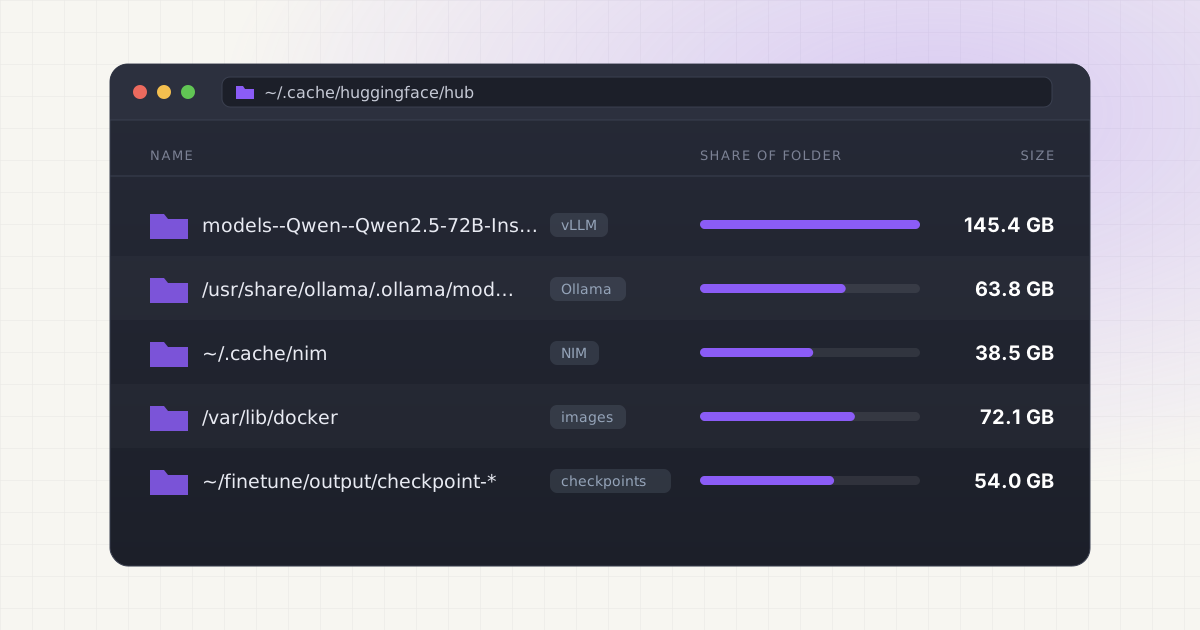
A DGX Spark has 128GB of unified memory, which means it can load models that would never fit on a normal desktop GPU. That's the point of buying one. The side effect is that every model you try is big, and they all land on the same internal SSD.
The short answer: on a DGX Spark, model weights end up in five places. The Hugging Face cache (~/.cache/huggingface/hub) holds anything pulled by vLLM, Transformers or hf download. The Ollama service keeps its models in /usr/share/ollama/.ollama/models. NIM containers cache weights in whatever host folder you mounted, usually ~/.cache/nim. Docker keeps images and volumes in /var/lib/docker. And fine-tuning runs write checkpoints into their output folder. Measure those five and you'll know where your space went.
Key takeaways
- NVIDIA lists the DGX Spark with 128GB of unified LPDDR5x memory and 1TB or 4TB of self-encrypting NVMe M.2 storage.
- vLLM and Transformers share one Hugging Face cache. Clean it with
hf cache ls,hf cache rmandhf cache prune, notrm -rf. - The official Ollama installer runs a system service as the
ollamauser. Its models are not in your home folder. - NIM and Docker data are easy to forget because they sit behind container mounts.
docker system dfshows what images and volumes use. - Delete in order of how cheap things are to get back: incomplete downloads and old revisions first, finished training checkpoints and favourite models last.
The DGX Spark specs that matter for storage
Here's what NVIDIA publishes, limited to the numbers that affect how fast your drive fills up:
| Spec | DGX Spark |
|---|---|
| Memory | 128GB LPDDR5x coherent unified system memory, 273GB/s (a 64GB version is offered through OEM partners) |
| Storage | 1TB or 4TB NVMe M.2 with self-encryption |
| Model size (NVIDIA's figure) | Up to 200B parameters on one unit, up to 400B with two linked |
| Operating system | NVIDIA DGX OS, based on Ubuntu 24.04, ARM64 |
| Networking | 10GbE RJ-45, ConnectX-7 at 200Gbps, Wi-Fi 7 |
| Ports | 4x USB Type-C (one used for power) |
Sources: NVIDIA DGX Spark product page, DGX Spark hardware overview, DGX Spark software stack.
The ratio is the problem. A model's file size is roughly its parameter count times the bytes per weight. At 16-bit precision that's 2 bytes per parameter, so a 70B model is around 140GB on disk. At 4-bit it's closer to a quarter of that. When the machine can comfortably run models in the tens or hundreds of gigabytes, a handful of comparisons is enough to fill a 1TB drive, and a few weeks of benchmarking can make a dent in 4TB.
What fills the drive
1. The Hugging Face cache (vLLM, Transformers, hf download)
vLLM's --download-dir flag defaults to "the default cache directory of Hugging Face". Source Transformers uses the same cache, at ~/.cache/huggingface/hub unless HF_HUB_CACHE or HF_HOME says otherwise. Source NVIDIA's own vLLM playbook for the Spark downloads weights with hf download before launching the container, and warns that "the container and model files are large". It also notes that model files stay on the device after the container stops. Source
If you run vLLM in Docker the way vLLM's docs show, the host cache is mounted into the container with -v ~/.cache/huggingface:/root/.cache/huggingface, so the weights still live in your home folder. Source If you skip that mount, the weights end up inside the container and disappear with it, and you download them again next time.
The cache also keeps old revisions. When a repo updates and you pull the new version, the old files stay "in case you need them again". Source We cover that in detail in how to clean the Hugging Face cache on Linux.
2. Ollama
The official Linux install script creates an ollama system user with its home at /usr/share/ollama and a systemd service that runs ollama serve as that user. Source Ollama's FAQ gives the Linux model folder as /usr/share/ollama/.ollama/models. Source If you also ran ollama serve as yourself at some point, there's a second store in ~/.ollama/models. Both can hold the same models. The full story is in where Ollama stores models on Linux.
NVIDIA's Open WebUI playbook for the Spark adds a third option: the bundled ghcr.io/open-webui/open-webui:ollama image with models in a Docker volume called open-webui-ollama. Source Those weights live under /var/lib/docker, not in either Ollama folder.
3. NIM containers and their cache
The Spark NIM playbook sets LOCAL_NIM_CACHE=~/.cache/nim and mounts it at /opt/nim/.cache inside the container. The container "downloads the model on first run". To free space, the playbook says to remove the cache with rm -rf "$LOCAL_NIM_CACHE", and notes that removing cached models means re-downloading on the next run. Source On top of the cache, each NIM image itself is a large container image stored by Docker.
4. Docker images, volumes and build cache
Docker stores everything under /var/lib/docker on Linux by default. Source Inference images with CUDA, PyTorch and a serving stack are big, and it's common to pull several tags of the same one (a stable vLLM image, a nightly, an NGC build) while chasing a fix. Each tag you keep stays on disk until you remove it.
5. Fine-tuning checkpoints
NVIDIA's Spark playbooks include NeMo, Unsloth and LLaMA-Factory fine-tuning. Source Training loops save checkpoints to their output directory, and with Hugging Face's Trainer the number kept is controlled by save_total_limit. Source Full fine-tunes save the whole model each time, optimizer state included. LoRA adapters are small, but merged models are full size again.
Measure it: commands to run first
Start with the whole drive, then each location. Run these in a terminal on the Spark:
# Free space on the root filesystem
df -h /

# Hugging Face cache, per repo
hf cache ls
du -sh ~/.cache/huggingface

# Ollama: system service store and your own store
sudo du -sh /usr/share/ollama/.ollama/models
du -sh ~/.ollama/models 2>/dev/null

# NIM cache
du -sh ~/.cache/nim 2>/dev/null

# Docker images, containers, volumes, build cache
docker system df
docker system df -v

# Anything else big in your home folder
du -h --max-depth=2 ~ 2>/dev/null | sort -rh | head -20
sudo is needed for the Ollama service folder because it belongs to the ollama user. If hf isn't installed, pip install -U huggingface_hub provides it. For a broader set of search commands, see how to find hidden AI model files.
To find stray weight files anywhere on the disk, search by size and extension:
sudo find / -xdev -type f \( -name '*.safetensors' -o -name '*.gguf' -o -name '*.bin' -o -name '*.pt' \) -size +1G -printf '%s\t%p\n' 2>/dev/null | sort -rn | head -30-xdev keeps find on the root filesystem so it doesn't crawl a mounted NAS.
Rather see it all in one list?
LLM Cleaner runs on DGX Spark (ARM64 .deb) and scans the Ollama service store, the Hugging Face cache and any folder you add, with sizes and duplicates side by side.
A safe cleanup order
The rule is to remove what's cheapest to get back first. Everything below is a download you can repeat, except checkpoints, which cost GPU hours.
Step 1: Interrupted downloads and old revisions
hf cache prune --dry-run
hf cache prune
hf cache prune deletes revisions no branch or tag points to anymore, leftover .incomplete files from interrupted downloads, and shared blobs no cached repo uses. --dry-run shows what it would remove first. Source This is pure garbage and usually safe to clear.
Step 2: Dangling Docker images and build cache
docker image prune
docker buildx prune
By default docker image prune only removes dangling images, the untagged layers left behind when you pull a newer version of a tag. Adding -a removes every image not used by an existing container, which is more aggressive: you'll pull those images again. docker volume prune only removes anonymous volumes unless you pass -a, and docker system prune leaves volumes alone unless you add --volumes. Source Named volumes like open-webui-ollama hold models and chat history, so remove them by name only when you mean it.
Step 3: Models you tried once
Use each tool's own delete command so shared files are handled correctly:
# Hugging Face cache: whole repo
hf cache rm model/org/repo-name --dry-run
hf cache rm model/org/repo-name

# Ollama (talks to the running service)
ollama list
ollama rm model:tag

# NIM: remove one model's folder in the cache, or the whole cache
ls ~/.cache/nim
ollama rm removes a model's manifest and only the blobs no other model still uses. Source NIM doesn't document a per-model delete command for the host cache, so look inside before deleting anything from it.
Step 4: Duplicates across tools
The same weights often exist twice: a GGUF in Ollama and LM Studio, or a model in the host HF cache and again in a container volume because a mount was missing. Our guide to duplicate AI models explains how to confirm two files are really identical (size alone isn't enough).
Step 5: Checkpoints, last and carefully
Keep the final checkpoint and the best one by your eval metric. Intermediate checkpoints are usually only worth keeping if you plan to resume or compare curves. For future runs, set save_total_limit so the trainer deletes older ones for you.
Move models to an external drive or a NAS
If you'd rather keep models than delete them, there are three practical targets: a USB-C SSD on one of the Spark's USB-C ports, a NAS over the 10GbE port, or another machine over the ConnectX-7 link. Remember that loading weights from a slower disk only slows down the load, not inference, once the model is in memory.
Hugging Face cache. Point HF_HOME (everything, including your token) or HF_HUB_CACHE (just the repos) at the new location. Source The cache relies on symlinks between snapshots/ and blobs/, so use a Linux filesystem such as ext4 or XFS, or an NFS share. If the share is also used from Windows, Hugging Face suggests HF_HUB_DISABLE_SYMLINKS=1, at the cost of duplicated files. Source Containers need the new path in their -v mount too.
Ollama service. Set OLLAMA_MODELS with sudo systemctl edit ollama.service, and make sure the ollama user can read and write the new folder (sudo chown -R ollama:ollama /path). Source Step-by-step instructions are in the Ollama on Linux guide.
Docker. Set "data-root" in /etc/docker/daemon.json to move all of Docker's storage. Source Stop Docker and copy the old directory first, or Docker starts with an empty store.
NIM. Change LOCAL_NIM_CACHE to a folder on the bigger disk before you run the container. The container sees the same /opt/nim/.cache either way.
Anything else. Copy the folder, verify it, delete the original and leave a symlink. It's the same method we describe for Mac in moving AI models to an external drive, and it works the same way on Linux with rsync -a and ln -s.
Doing it with LLM Cleaner
The commands above work, but you're juggling five tools, two Ollama stores and a cache full of hash-named files. LLM Cleaner puts them in one list.
- Runs on the Spark. Install the ARM64 .deb with
sudo apt install ./LLM*Cleaner_*_arm64.deb. It needs a desktop session, so use the local desktop or a remote desktop. Linux builds also come as .rpm and AppImage for x64 and ARM64. - Finds both Ollama stores. It reads the system service store in
/usr/share/ollama/.ollama/models(and checks/var/lib/ollama, which some distro packages use), plus~/.ollama/modelsandOLLAMA_MODELS. Models show up by name, not by blob hash, and layers shared between models are counted once and kept while still used. - Reads the Hugging Face cache that vLLM and Transformers share, wherever
HF_HOMEorHF_HUB_CACHEpoints. - Custom folders for the rest. NIM and llama.cpp cache detection is on the roadmap. For now, add
~/.cache/nim, your checkpoint folder or a shared/data/modelsas a custom folder. - Duplicates. Files of 50MB or more are matched by size plus a content fingerprint, so the same weights in Ollama, LM Studio and the HF cache are flagged together.
- Undo. Removed files go to the freedesktop Trash and can be restored in one click. Moving to another drive leaves a symlink so your scripts keep working. A Markdown report lists everything with sizes and paths.
One honest limit: files owned by another user follow normal Linux permissions. The app runs as you, so it won't delete the ollama service's files. For those it shows you the command to run instead, such as sudo ollama rm model:tag. Everything runs locally on the Spark.
Who this is for
This guide, and the app, are for people who use a DGX Spark as a working machine rather than a demo:
- ML researchers and engineers comparing several large models or quantizations with vLLM or Transformers, where each comparison adds tens of gigabytes to the HF cache.
- People serving models with NIM, vLLM or Ollama behind Open WebUI, who end up with the same model in a host cache, a container volume and an Ollama store.
- Fine-tuners running NeMo, Unsloth or LLaMA-Factory, whose checkpoint folders grow quietly.
- Homelab users with a Spark next to a Linux GPU box or a NAS, who want one view of where models live before moving them.
If you only ever run one Ollama model, ollama list and ollama rm are enough. If you've lost track of what's on the drive, a scan that shows everything by name, size and duplicate status saves an afternoon of du. One $19 license covers two computers, any mix of Linux, Mac and Windows, so it can cover the Spark and the laptop you use to reach it.
Keep the Spark's SSD for models you actually use.
One scan across Ollama, the Hugging Face cache and your own folders. Trash-first with one-click restore. $19 once, two computers.
For general ways to shrink a local AI setup, such as choosing quantizations and sharing one model folder between tools, see free up disk space for local AI.
FAQ
How much storage does the DGX Spark have?
NVIDIA lists 1TB or 4TB of NVMe M.2 storage with self-encryption. The product page describes it as up to 4TB. Check your exact configuration with df -h /.
Where does vLLM store models on a DGX Spark?
In the Hugging Face cache, ~/.cache/huggingface/hub by default, unless you pass --download-dir or set HF_HOME or HF_HUB_CACHE. In Docker, the weights only persist if you mount that folder into the container.
Where are Ollama models stored on DGX OS?
If you installed Ollama with the official script, in /usr/share/ollama/.ollama/models, owned by the ollama user. If you run ollama serve yourself, in ~/.ollama/models.
Is it safe to delete ~/.cache/nim?
Yes, with the container stopped. NVIDIA's playbook suggests exactly that to free space. The trade-off is that NIM downloads the model again on the next run.
Does docker system prune delete my models?
Not by default. It skips volumes unless you add --volumes, and even then only removes anonymous volumes. Bind-mounted host folders like ~/.cache/huggingface are never touched by prune. Removing images with -a means pulling them again, but doesn't delete weights stored on the host.
Can I store models on a NAS and still use them on the Spark?
Yes. Point HF_HOME, OLLAMA_MODELS or LOCAL_NIM_CACHE at the mount. Loading is slower over the network, but inference speed is unchanged once the model is in memory. Use a filesystem that supports symlinks for the Hugging Face cache.